Changelogs
Stay up to date with the latest changes and enhancements.
Stay up to date with the latest changes and enhancements.

Stay up to date with the latest changes and enhancements.
10. Sep 2026
Share
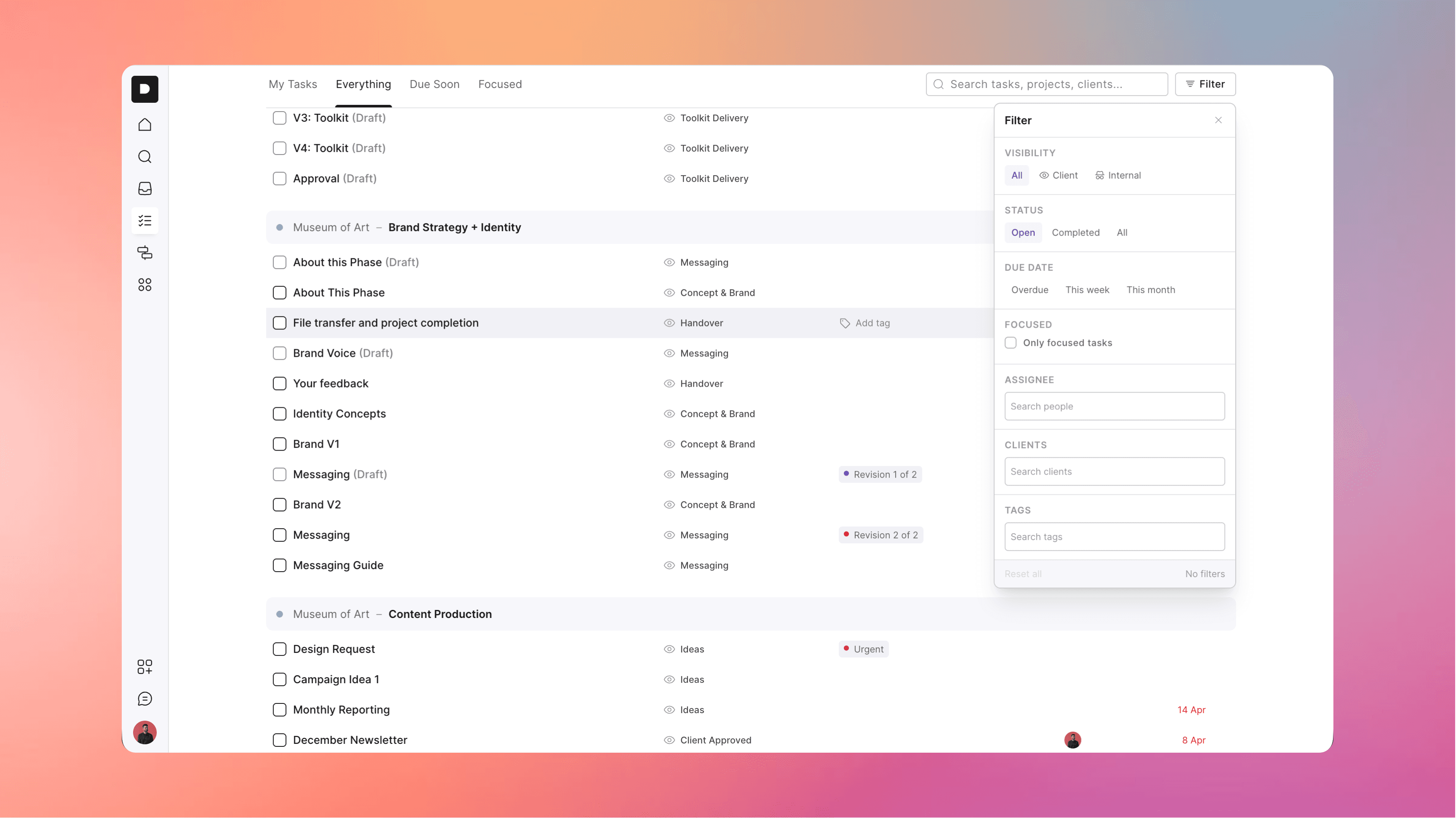
We’ve had a lot of requests for this one so we’re excited to give the people what they want… a single view where you can view all your projects and tasks in one place.
To faciliate this, we’ve replaced the “My tasks” section with a more useful “Tasks” area, which still includes a filtered view of your own tasks, but now also includes an “Everything” tab that shows every task across all active projects in your account.
We’ve also added some powerful filtering so you can slice and dice the data however you like.
This update should make it much easier to get a full birds eye view of everything that’s active, as well as a place to do some quick triage work if you want to check everything that’s overdue across the whole agency.
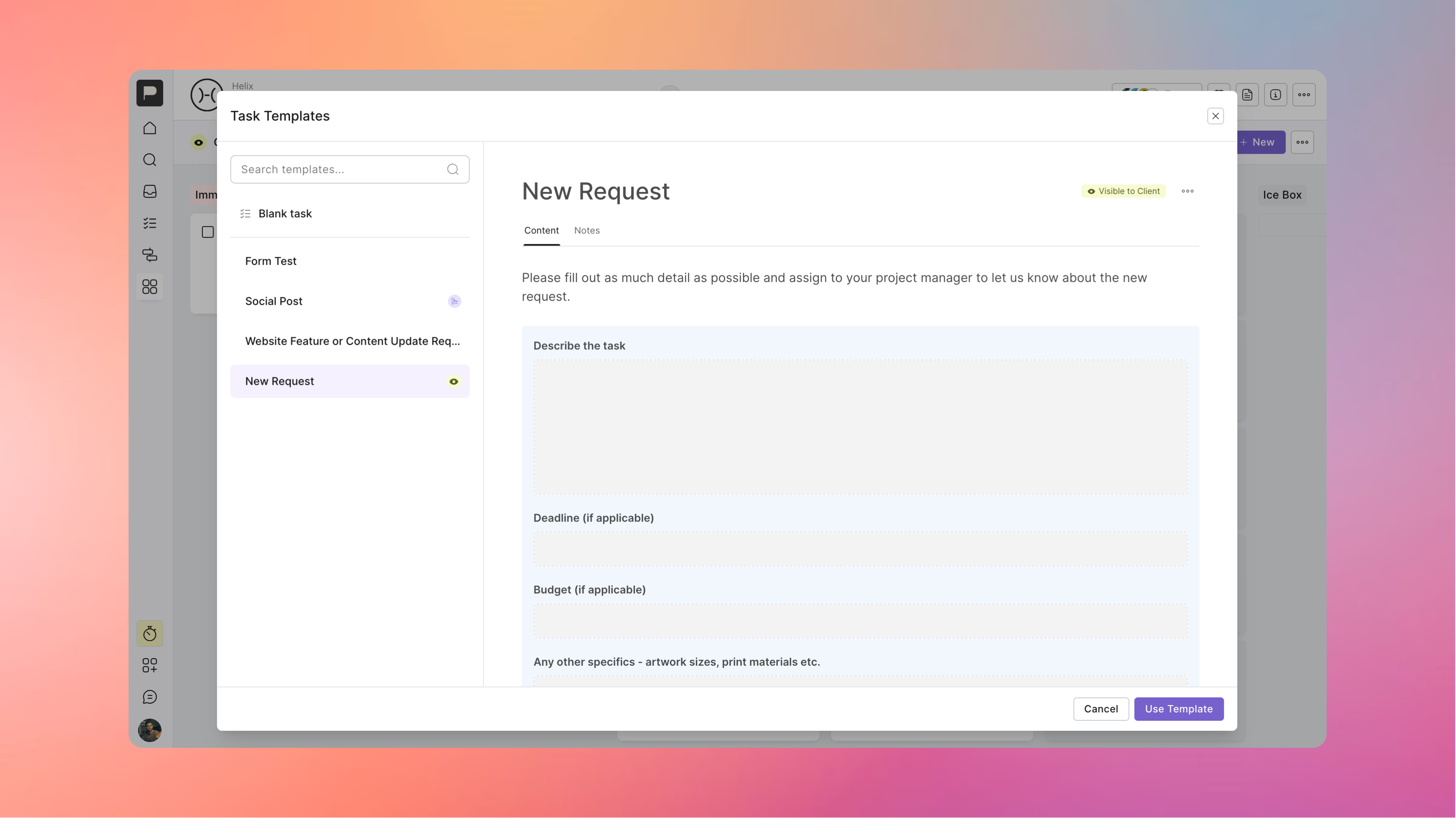
Clients have always been able to create tasks in board projects, and we made that process easier when we added Task Templates - but we knew we could still make new work requests even easier for clients, so we’ve improved the workflow in a few key ways:
We’ve added a prominent button on board projects for adding a New Task
The default flow is to show your task templates that are enabled for the client if you have them to encourage them to use these
When they create a task from a template it takes them directly into that card
For any task that has a form you can now submit the form without completing the task
With this all in place, we recommend setting up one or two task templates that include forms you’d want the client to fill out for any new work request, and encourage them to use them through this workflow.
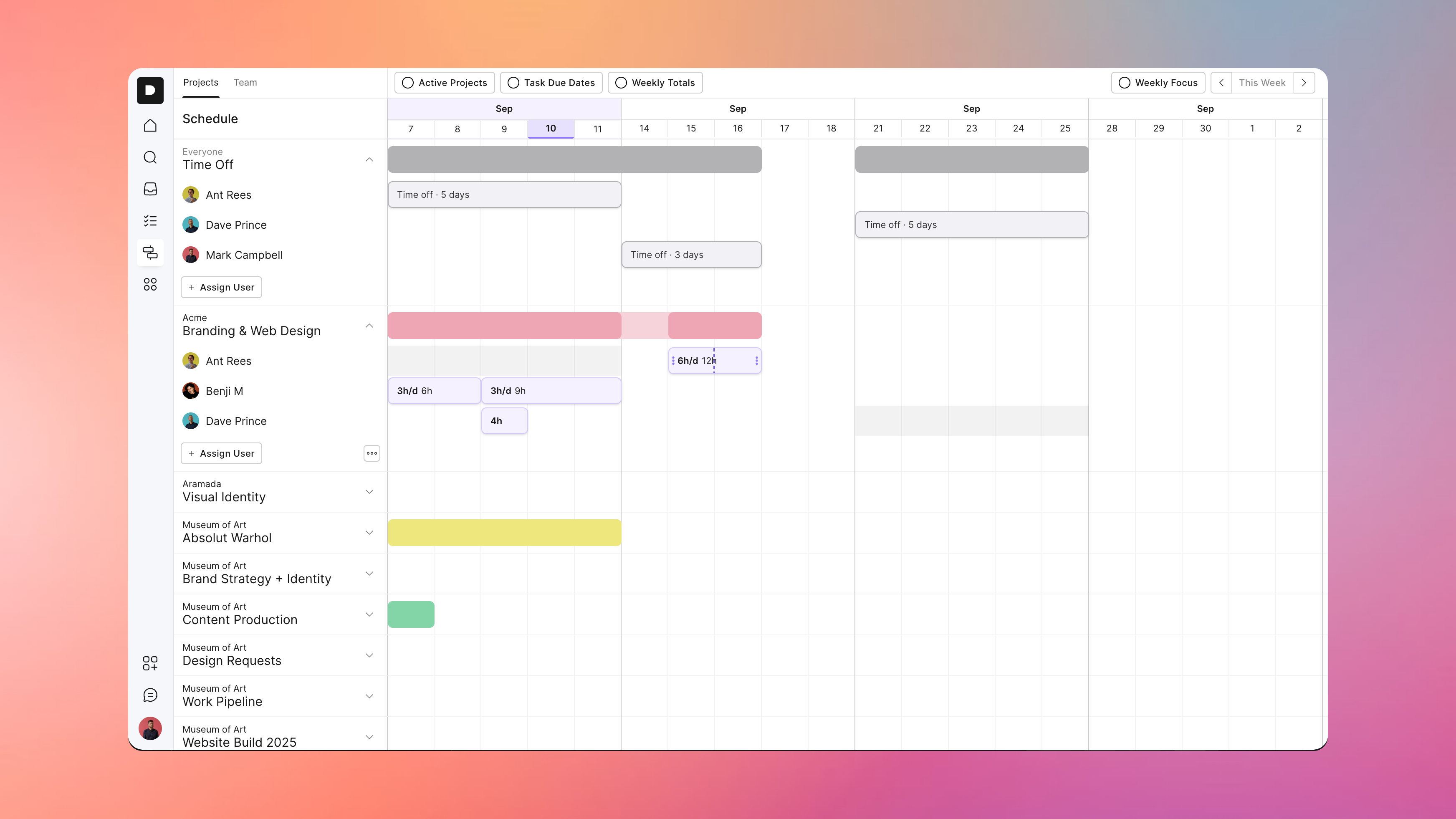
We’ve made a number of updates the schedule view to make it more useful when planning out projects and your team’s time:
You can now schedule in time off for the team so you know when they’ll be unavailable - this greys out their availability and also shows any time scheduled on days off as over capacity
Time bars on the schedule can be split so you can more easily make updates without having to recreate the same details if you need to adjust just some days of an existing assignment
There’s a new “Weekly Totals” toggle so you can see at a glance how much time a project is being allocated each week, as well as see your team member’s capacity for the week at a glance
You can now shift dates in bulk, so if a project is delayed by a week across the board you can move everyone’s assignments and any other dates in the future with one action
You can now add any team member directly to a project from the schedule view, so you no longer need to jump over to the project and add them before you can start scheduling in their time
Some other recent releases that should also help make things run smoother:
We added both Google and Microsoft accounts as options for signing up / signing in… and if you already use the same account as one of these it should just connect you directly to your account when you use those options
We’ve redesigned project messages to make them feel more like a running conversation, so all your chats with clients have an organised home but still keep everyone in the loop
Added Client documents so you can now store documents at the client level, not just projects… which is great for things like agreed strategy docs, overall planning, how-to guides for their website etc that you want to live on after a project is wrapped up
We added project codes so you can track your work easily in other systems
You can now share voice notes inside of a step, comment, message, or chat
We made the file attachment button more visible to clients so it’s easier for them to learn how to share files with you
Other bug fixes and performance improvements as always
Phew… that was a big one.
We’ve also started the work to add native time tracking within the platform, so keep an eye out for that.
Hopefully you get a lot of use and value from these updates, and as always we’d love to hear any feedback.
19. Aug 2026
Share
One of the core principles of Outlign since day 1 has been to keep track of where you’re up to in your process, both to help keep a lid on things like rounds of revisions (and therefore scope creep), as well as letting you know where a project is at with just a glance.
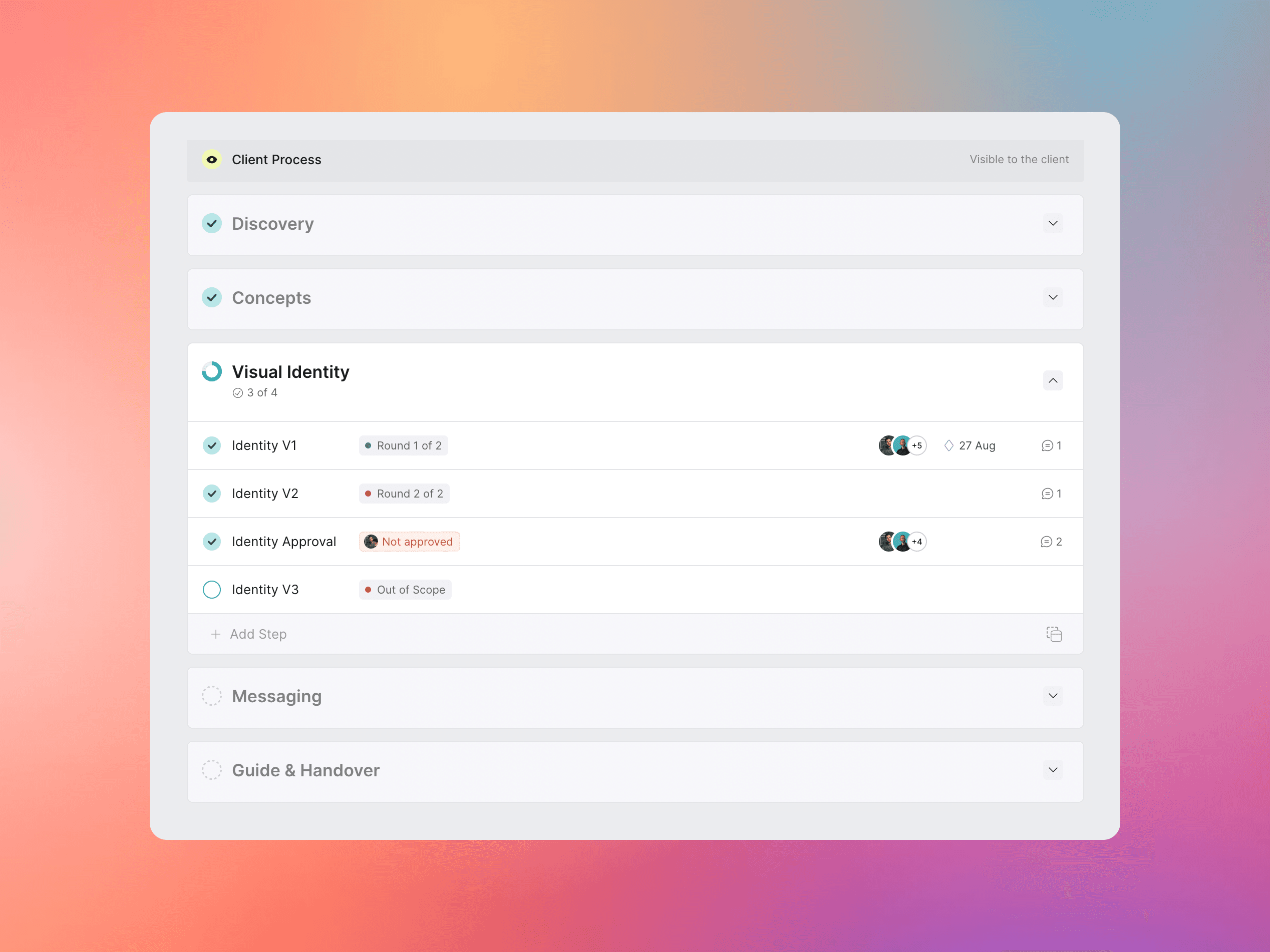
With that in mind we’ve released an update to the layout and functionality of the process project views.
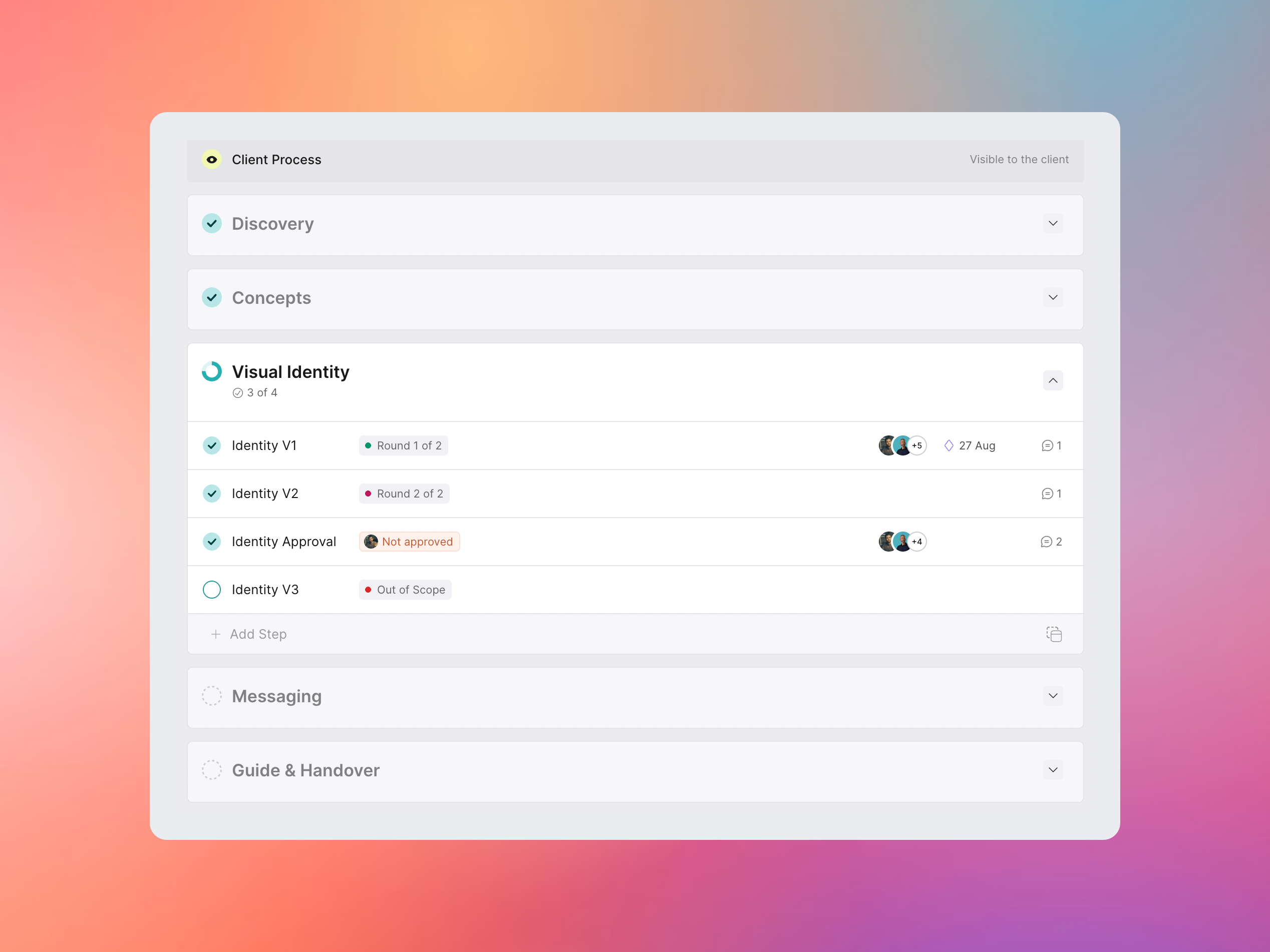
We’ve cleaned up the process view to further reduce distractions and put the focus even more clearly on the phases that are in progress.
Progress and state are more clearly marked down the left column, showing which phases are completed, in progress and upcoming all in line and with much clearer status.
The view on the project’s home screen is even more simplified, so the current state and progress really is easily absorbed with just a glance.
In addition to this we’ve also added another heavily requested feature - tags for tasks - which serves double duty in process projects.
We’ve found by tagging steps with not just which version they are, but also calling out how many rounds are included makes it completely clear to the client where you’re up to and what’s included.
You can then tag any work beyond what was in your proposal as Out of Scope so there’s no surprises when you send your invoices.
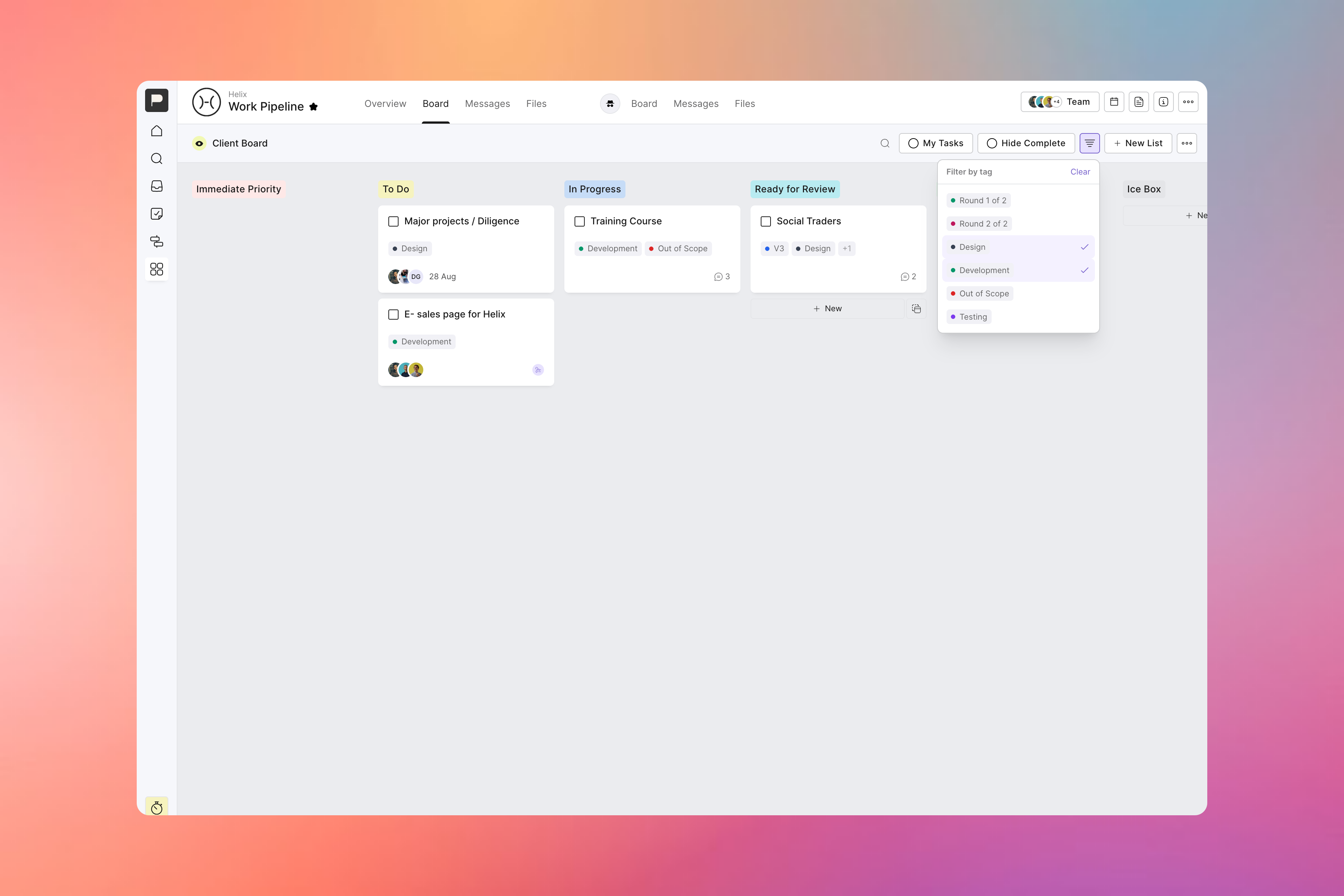
The bonus of adding tags for tracking things like rounds of revisions means that you also get the general benefits of using tags in your more traditional kanban board projects.
Tag tasks for priority, which department they belong to, or whatever your little organising heart desires. You can then easily filter down to just the tasks for a tag or two, while flagging any addition info like which tasks are truly urgent.
Our advice would always be to “think before you tag”, as it can make things harder to follow once you hit a certain limit - but how you use them is totally up to you.
So take tags for a spin, and let us know what you think of the updated process view. We’re committed to making it easier all the time to keep your process on rails and communicate clearly with your clients, and think this is a step further down that road!
We’ve added some other key updates as well since our last announcement, including:
You can now preview a project as a client so you can fine tune things before you share
A new view option on your dashboard for starred projects that’s more streamlined
The ability to move a task from one project to another
Plus a few small performance improvements along the way
27. Jul 2026
Share
Many of you may have been wondering when we’d get in on the AI game.
We’ve held off for a long time while others raced to cram it into every crevice of their products, because we want to make sure that as we add it we do it in a very considered way, that’s not just there for the sake of it, and doesn’t compromise on our commitment to simplicity and just giving you the things you need to run great projects.
So with that in mind, our first foray into the AI space is to allow the AI agents and custom tools we know you’re all using to have better access to your Outlign account and a cleaner way to read your workspace and actually complete actions that you direct them to do on your behalf.
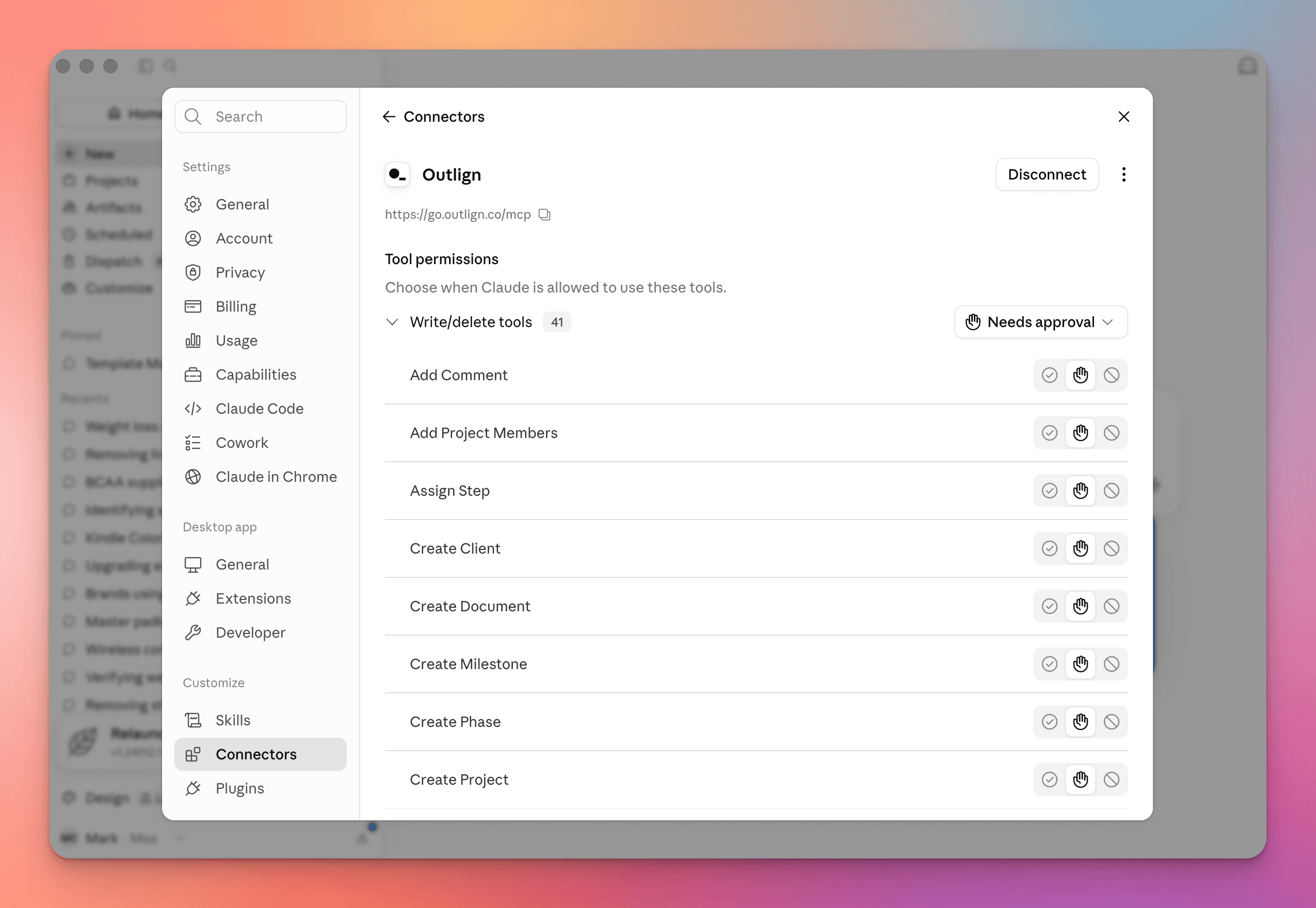
So we've built out and released our full API, and created an MCP server that allows agents like Claude to directly access the platform. From today both are open to everyone on Outlign.
MCP is the standard that lets AI assistants plug straight into Outlign. Point your assistant at your account and it can work inside your projects the way you would.
Once it's connected, you can just ask for things like:
"What's overdue across all my clients this week?"
"Set up a new brand identity project for Acme from our Web Development template"
"Summarise everything the client has said on the homepage designs"
"Create the tasks for stage two and assign them to Jane"
One thing worth knowing: It acts as you, with exactly your permissions - so it has access to all your clients and projects, and can create tasks, messages and comments wherever you can - and they will look like they came directly from you… so just keep that in mind as you get acquainted with it.
Open your AI tool's settings and add a new MCP server
Paste in https://go.outlign.co/mcp
Your browser opens an Outlign login page — sign in as you normally would
Review what it's asking for, and approve it
That's the whole thing. You can see everything you've connected, and revoke any of it, under Company Settings → Integrations.
For the full walkthrough, check out our help article on connecting AI agents to Outlign
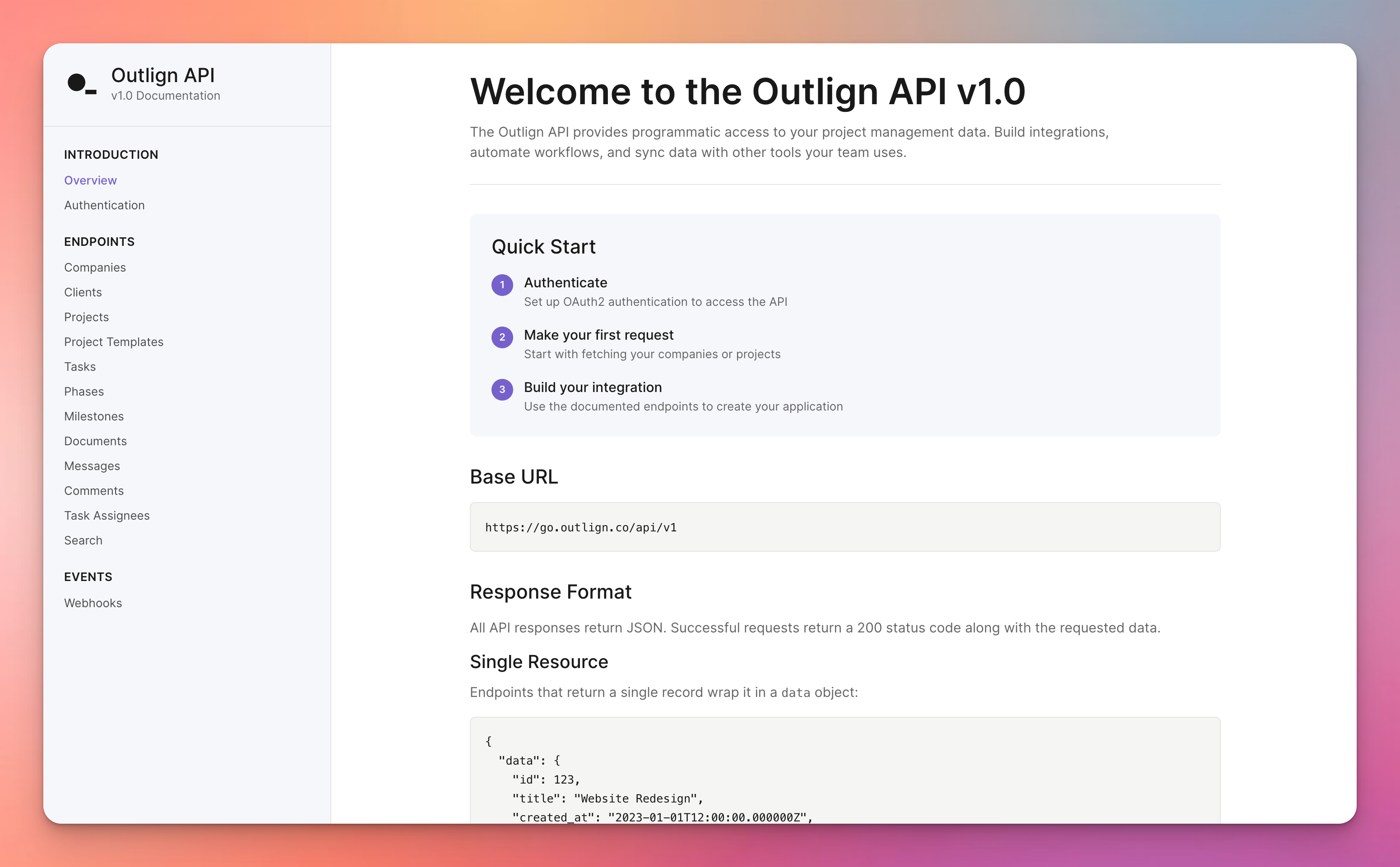
If you'd rather build something yourself, our REST API is now fully public and documented too.
It covers clients, projects, phases, tasks, milestones, documents, messages, comments, templates, and search - essentially everything you can do in the app, you can now do from your own code.
Head to Company Settings → Integrations
Under API Clients, hit Create client
Give it a name and a redirect URL, and you'll get your client ID and secret
Authenticate over OAuth, and start making requests
The client belongs to your agency rather than to whoever created it, so it keeps working as people join and leave your team.
Everything you need is in the full API documentation
Both of these are included in your plan. And if you're already running Zapier with Outlign, nothing there changes — this just gives you a different way to work with your Outlign account.
We're genuinely excited to see what you build, and what you end up asking your assistant to do on a Monday morning. As always, we’d love to hear your feedback and we’re always up for a chat.
06. May 2026
Share
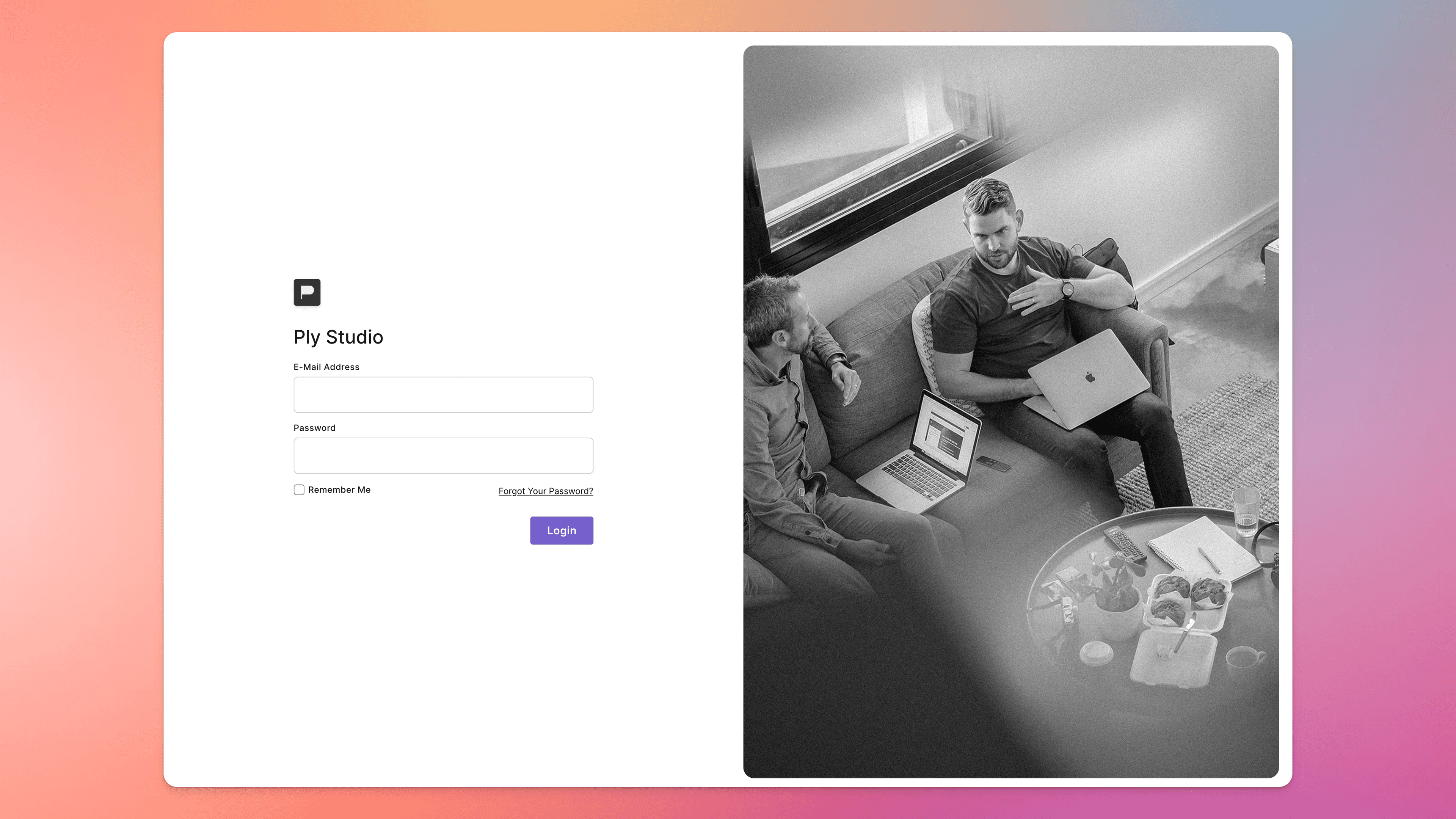
We always built Outlign with a minimal design in mind to make it feel as much like it was “your” product as it was ours, while also making it feel premium for your clients. We have areas to add your own custom imagery and icons to make your team and clients feel right at home.
Now for agencies who value an even more custom experience, we’ve enabled an optional add-on for white labelling your Outlign account.
When you purchase the white label add on for your account, you get access to the following:
A custom domain (example: projects.youragency.com)
A login page featuring your logo and optional custom hero image
Email notifications that show your company name and logo and remove Outlign branding
Invite links and registration forms for new users will show your name and logo as well
Which will mean your team and your clients get the full Outlign experience without ever really seeing the Outlign branding.
White Labelling is $10 USD per month, per agency.
This appears as a separate line item on your billing statement and operates on its own billing cycle based on when you purchase the add on.
Just to be crystal clear, it is not charged per team member or per seat. It’s one flat monthly fee that covers your entire agency workspace.
We keep this as an optional add-on rather than including it in the standard plan, as not every agency needs custom domains or branded client experiences. This helps keep core Outlign pricing lean for everyone, while giving agencies who want that extra layer of polish the option to switch it on.
You can also cancel White Labelling at any time in the future without affecting your normal Outlign seat subscription.
To get started with White Labelling, you’ll need to be on a paid Outlign account to set this up as it’s not available during the free trial period.
When you’re ready, just:
Head to your Company Settings page
Click the option to purchase the add-on and complete the checkout
You’ll then see instructions to set up your custom domain
You’ll also see the option to upload your login page hero image if you want to enable this too… your logo will just be taken from your existing company avatar
We’ve been using this in our own agency and loving the experience so we think you and your clients will as well.
For more info on how it all works and getting started, check out the help article here
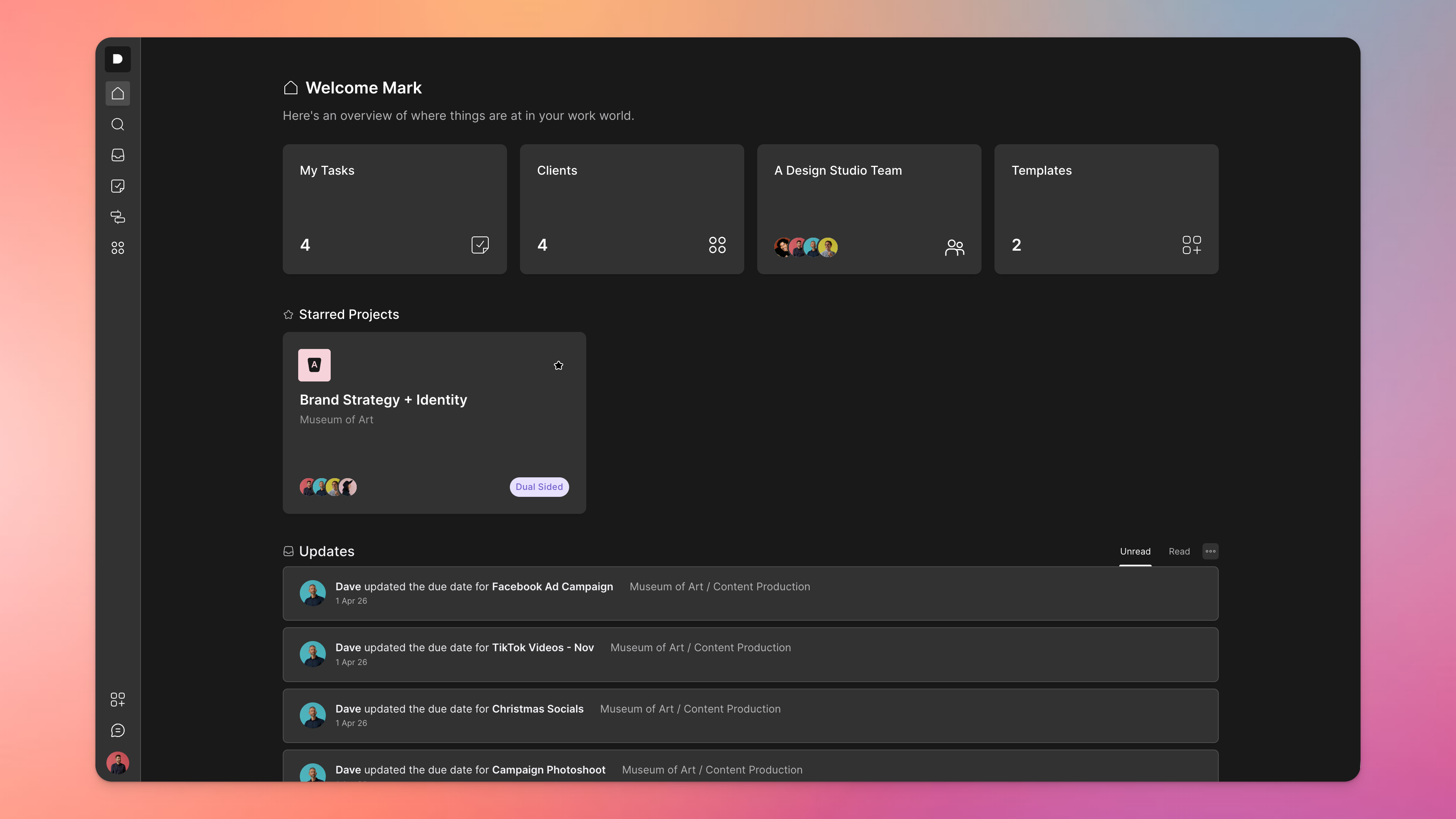
Another one of those things you don’t realise how much you missed until you get your hands on it - at least I didn’t… Outlign now has Dark Mode support.
As a typical light mode guy I have been surprised how much time I am now spending in dark mode when I’m working every day inside Outlign. Sometimes it’s the simple things I guess.
To enable dark mode, click your avatar in the bottom left and choose from System (switches when your OS does), light or dark mode.
As always we’ve also been chipping away at other smaller improvements and bug fixes to help your projects and your day-to-day run smoother.
Recently we’ve shipped:
Some general performance improvements across the board to make Outlign feel snappier and smoother to use
Tables and Toggle sections to our content editor for even richer messages
A better editing experience in Documents where you can select and move multiple rows at once (coming soon to editing tasks)
A few other things you’ll notice along the way and always more to come…
We’re really excited about these updates and where things are heading for the next phase of Outlign, and we’re stoked to have you along for the ride as part of our creative community.
19. Mar 2026
Share
A New Way to Create, Collaborate, and Keep Work Moving
Outlign has just rolled out a major new feature designed to make managing long-form content inside projects faster and more seamless. Introducing Docs, a flexible, built-in document tool for everything from creative briefs and strategy docs to internal notes and client-facing content.
With Docs, teams can now create and manage detailed content without needing to jump between platforms, keeping everything connected to the work it supports.
Docs are fully integrated into your projects, making them easy to access, share, and embed wherever they’re needed. Whether you’re outlining a strategy, capturing ideas, or collaborating with clients, Docs bring everything into one place.
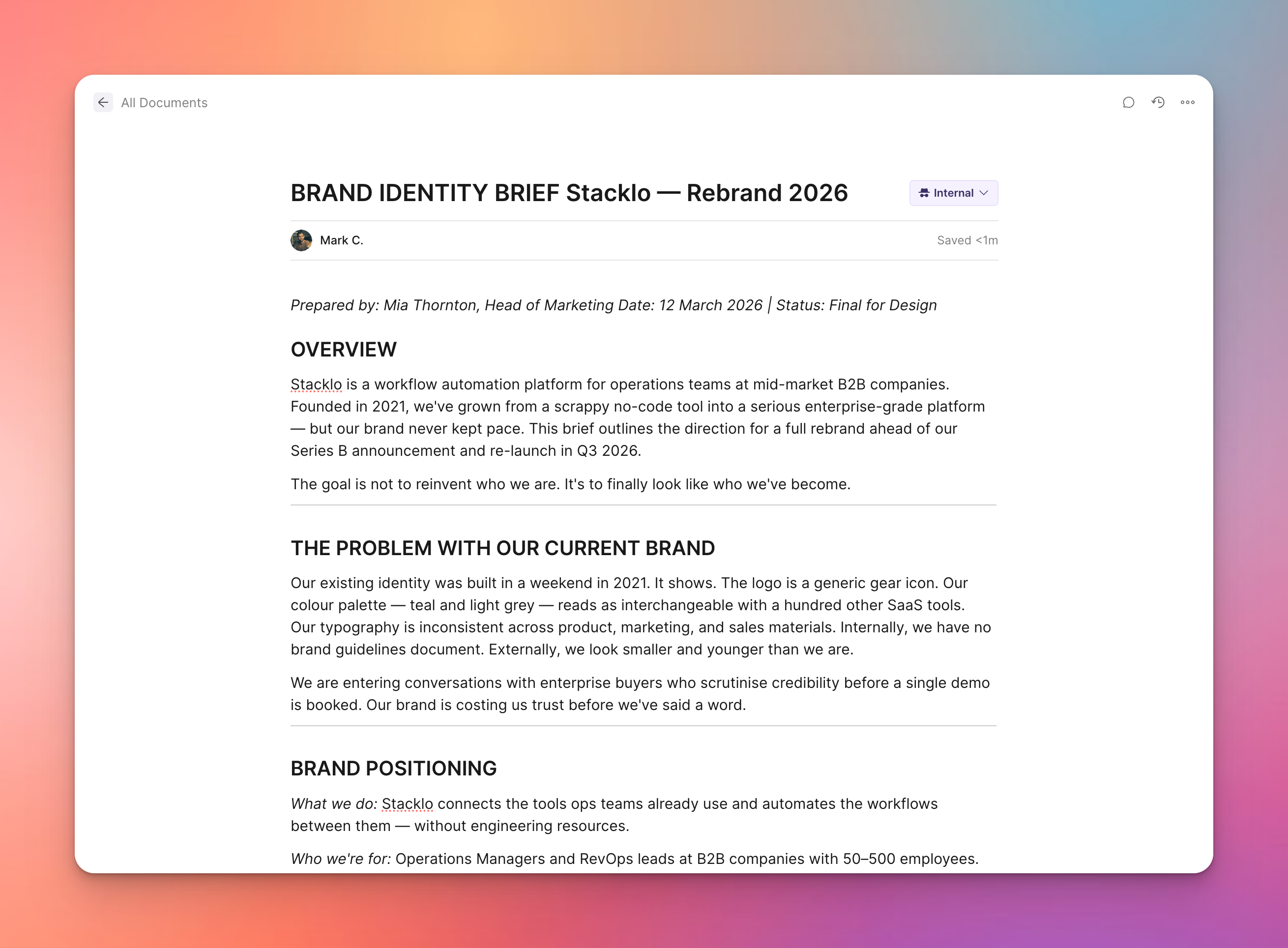
Docs come with a range of powerful capabilities designed for real-world agency workflows:
Real-time collaboration with your team
Continuous auto-save so nothing gets lost
Version history with the ability to review and restore changes
Inline comments, replies, and resolution tracking
Easy embedding into tasks and messages via simple links
Pin important docs to project resources for quick access
Flexible access controls for internal, client-view, or full client collaboration
Export options in Markdown or PDF
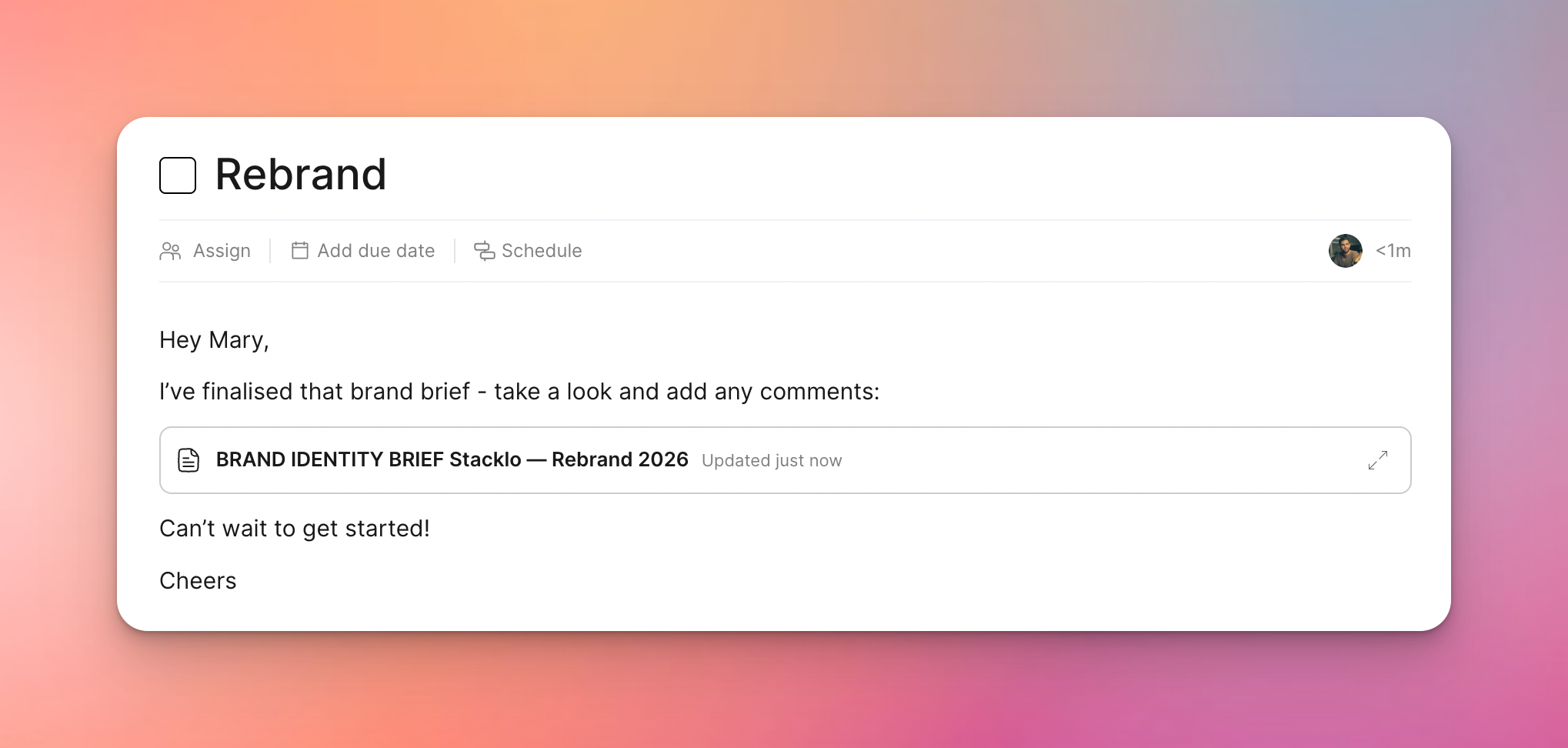
Docs are designed to support the way creative and project teams operate day-to-day. From early-stage thinking through to delivery, everything can now live inside Outlign, reducing the need to switch between tools and keeping context intact.
Docs are available now. Simply jump into any project and start creating.
For a deeper dive, check out the help article on how to get the most out of Docs.
As always, feedback is welcome!
25. Feb 2026
Share
We’ve been busy to start the year working on some major new features as well as the usual small improvements to help make Outlign better all the time.
The focus for this update is one major feature - enabling internal chat with your agency teammates right inside Outlign! As with all our major features, we’ve put a lot of thought into what to include but also what to leave out to help keep you focused on the wonderful creative work you’re actually here to do!
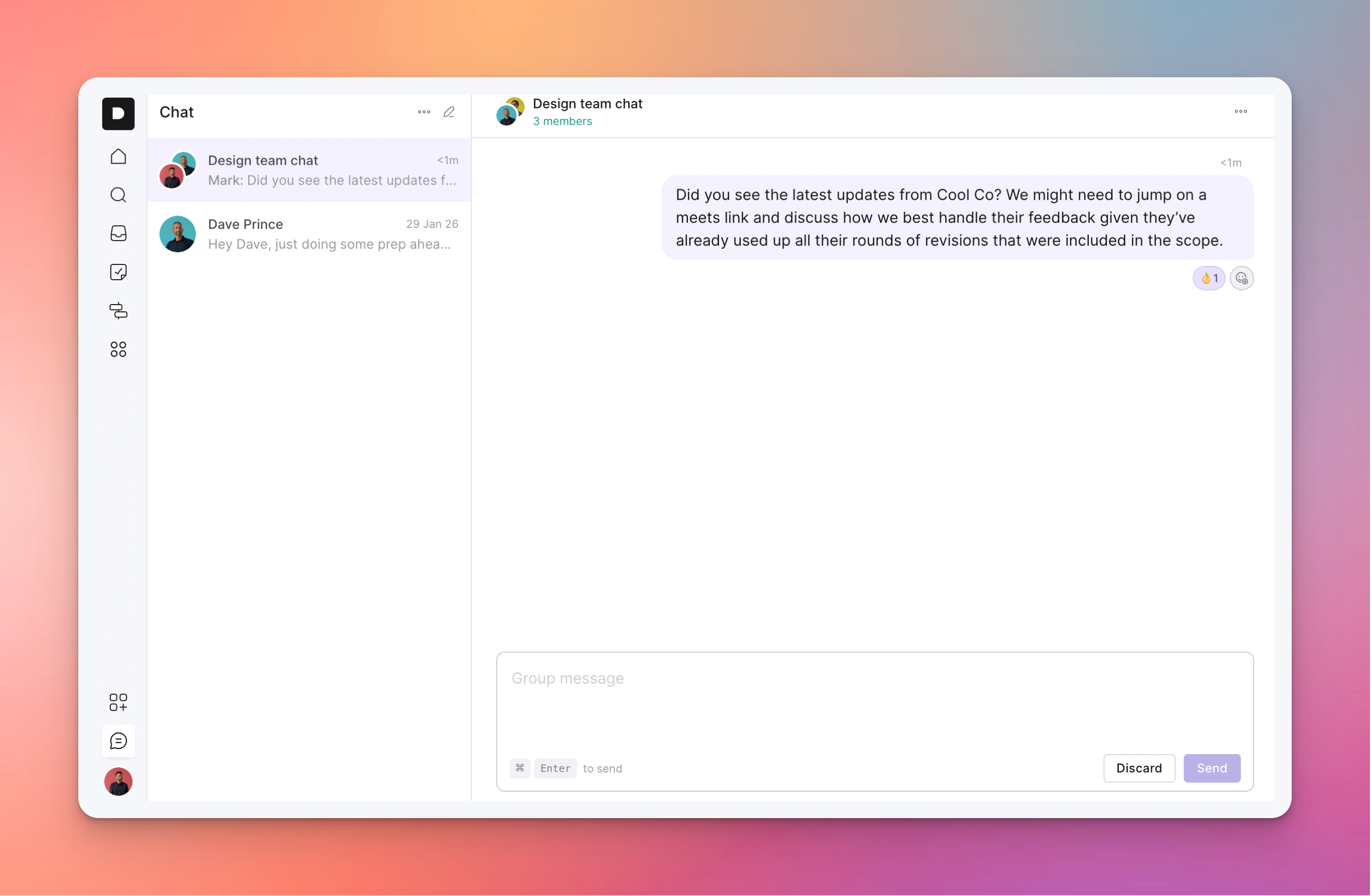
The chat feature works like many other work chat apps, with a few key differences:
No “online” status
No “Dave is typing…” indicator
No over-the-top notifications when you receive a new message
No client access
Why leave these things out you say?
It’s all part of our ethos to help you stay focused on the work that matters.
In our opinion (and experience!), most work chat tools create pressure to be online all the time, respond immediately to every message, and make yourself available to everyone.
So while we find it useful to be able to ping a direct message to someone on the team for a quick chat, we want to do it in a way that allows everyone to reply on their timeline without creating a whole lot of noise.
You can create one-on-one chats or different group chats with your other team members, so there’s plenty there to keep the internal communication flowing while not taking over your life.
For discussions with clients we recommend keeping this to the Messages section within each project to keep a bit of separation and focus to your client comms.
Since our last update we’ve also pushed a few little improvements:
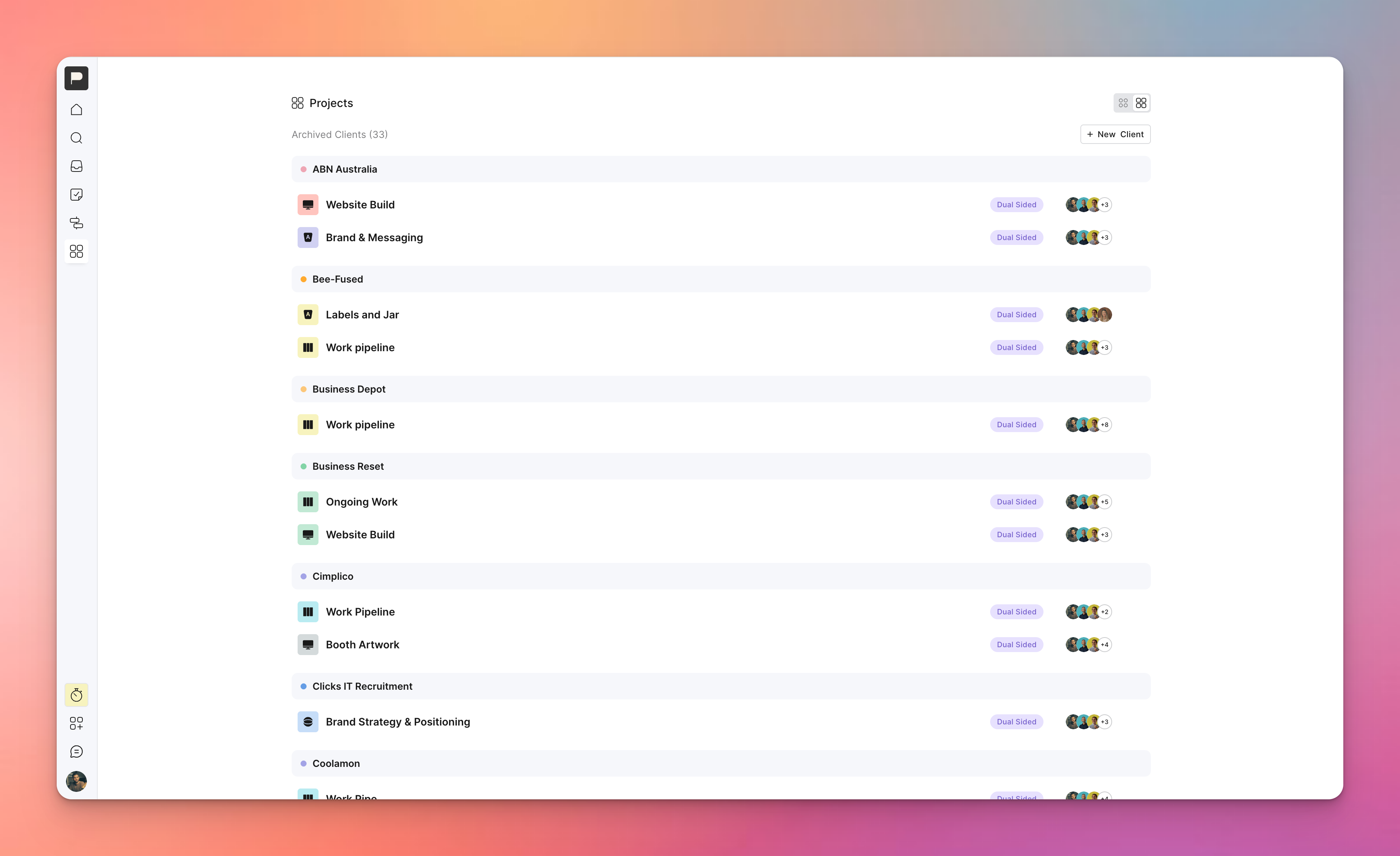
Added a view switcher in the Clients list so you can view all projects at once so you don’t have to click into each Client to see a list of projects you belong to. You can still click the client link to access all their projects.
Other bug fixes and small improvements to help keep the creative work flowing
As always if there’s anything you’d love to see in Outlign feel free to reach out - we’re always up for a chat about making your creative projects run smoother.
19. Nov 2025
Share
We’ve just pushed some fresh updates that we think you’ll love.
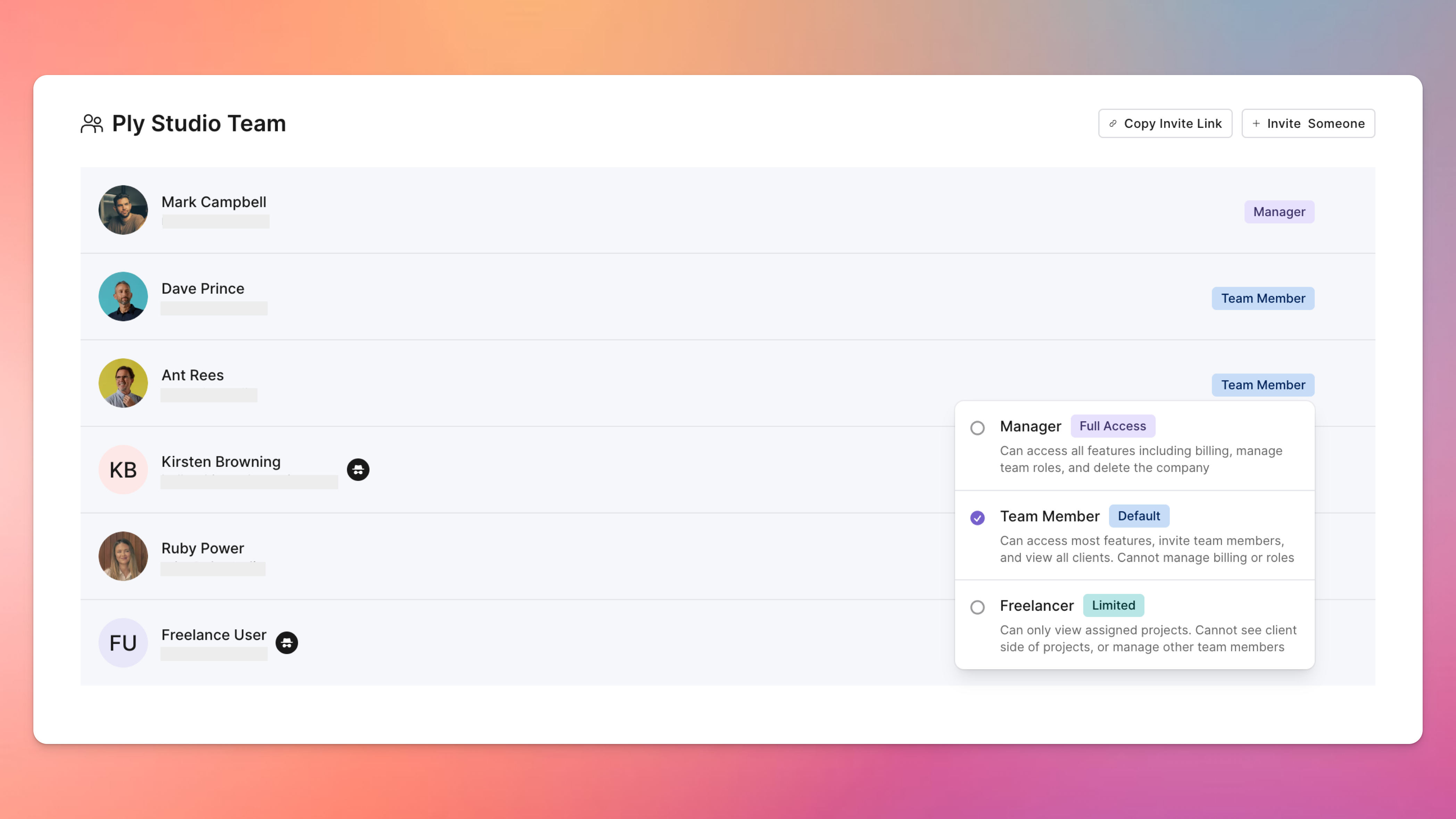
We’ve added the ability to set different role types for the users in your agency team:
Manager - has access to everything
Team member - has access to most things, but can’t see billing info or manage the roles of other agency team members
Freelancer - has limited access to the agency side of projects, and can only see clients and projects they’re assigned to
This should be a great help to a number of agencies we’ve talked to who want to bring in freelancers they collaborate with to Outlign, but without giving them access to everything the other agency team members can see.
We’ve set this up so that the first user in each agency is set as the Manager by default, and then others are currently marked as Team Members, but if you’re the manager, you can easily edit these roles how you see fit.
Client users will remain the same as they currently are now, so no changes there!
For more info on roles, view the article on our help desk.
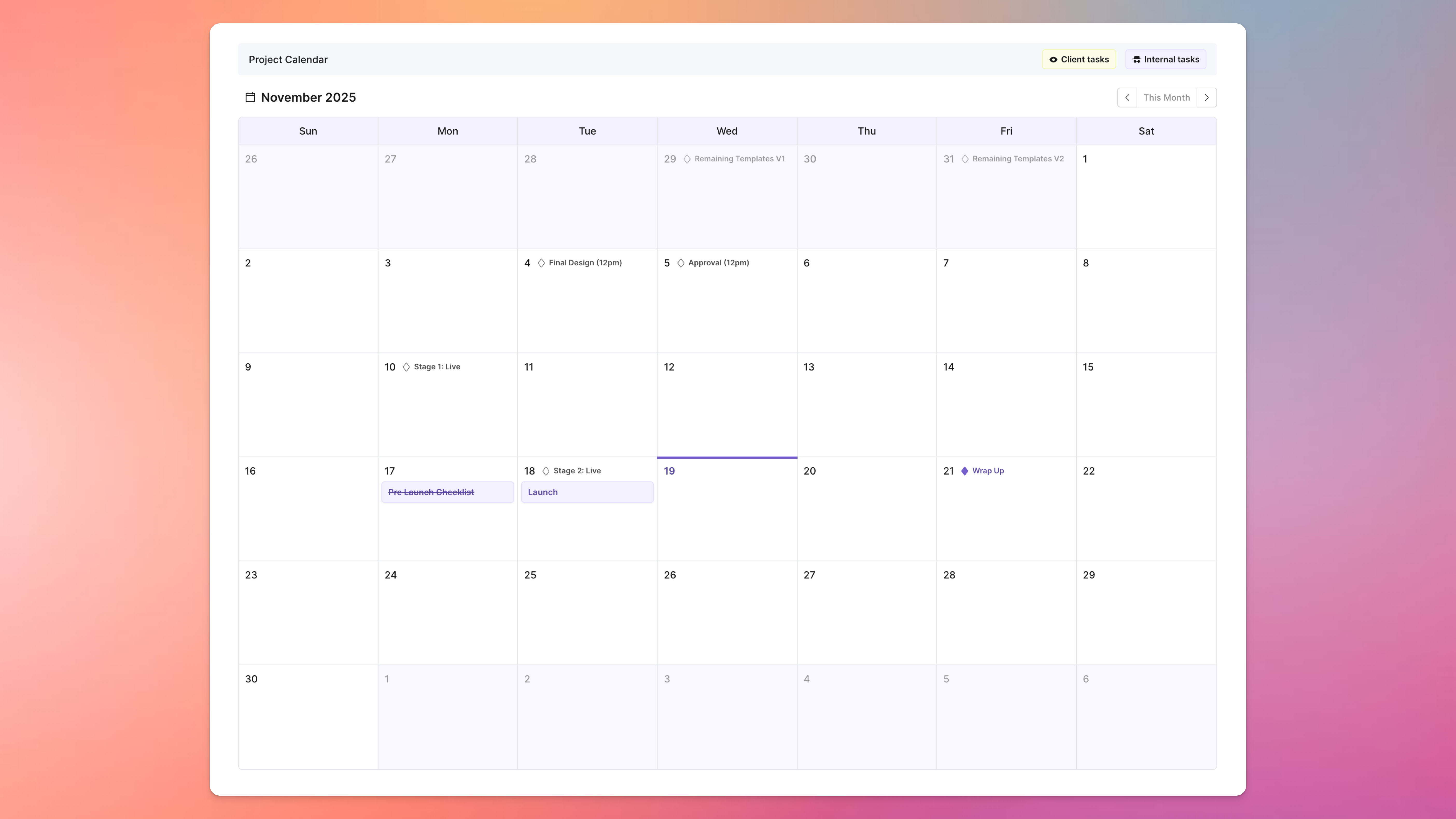
Each project now has a Calendar view where you can get a birds eye view of all Client & Internal Tasks that have due dates, Phase due dates, and Milestones.
You can also easily add new due dates, or drag to update existing ones.
The client can also view the calendar, but will only see Client Tasks with due dates, nothing internal.
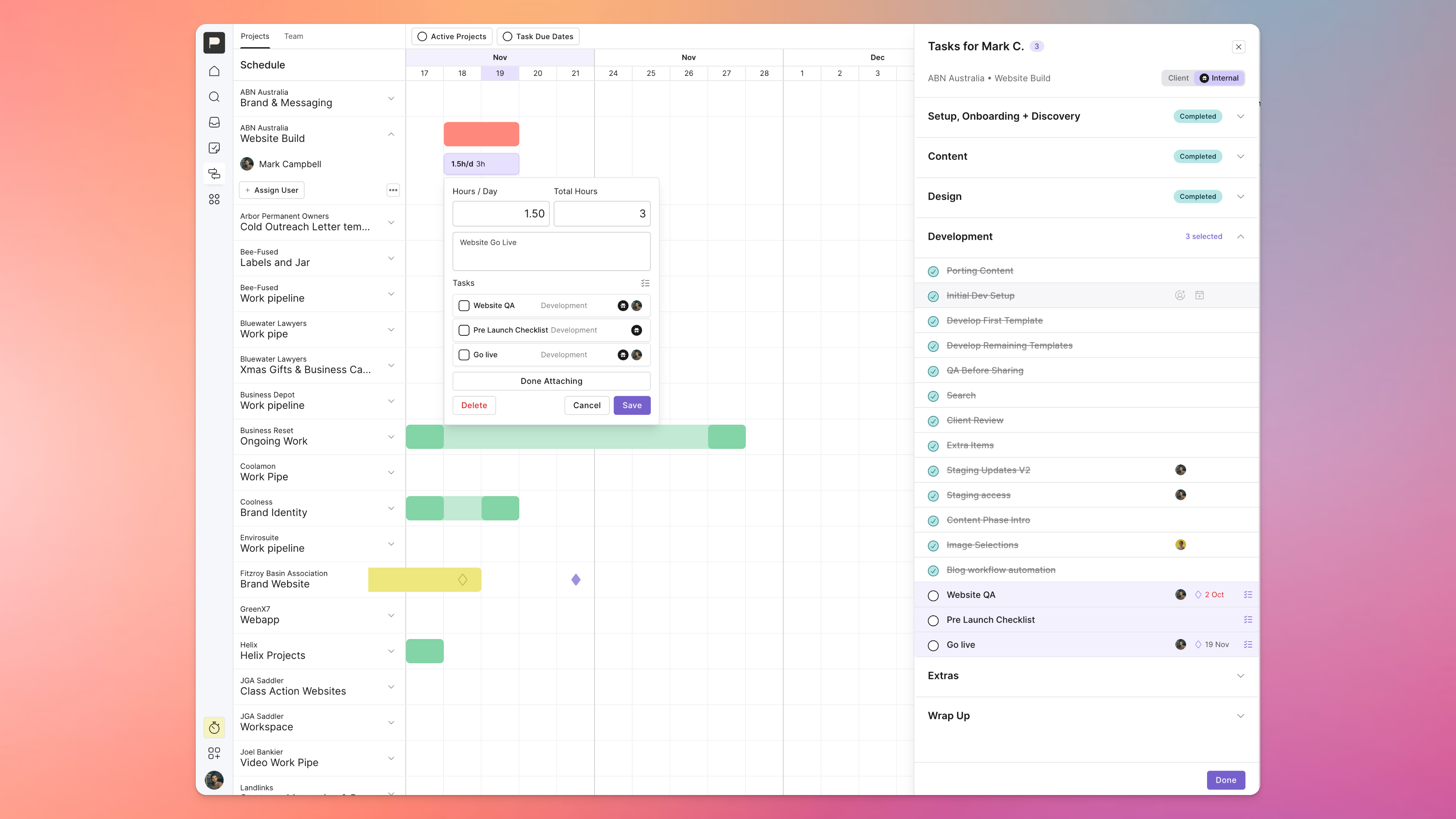
We realised it was a bit painful to attach tasks to a user assignment in the Schedule view when you’re planning out your projects and capacity, so we’ve completely updated the experience.
Now when you are attaching tasks to a time block on the schedule, you can see all the phases and tasks from the project in one streamlined view, to easily navigate to the ones you want to attach.
While you’re there you can also update due dates, assignees, and tick things off, making it easier to update things as you plan.
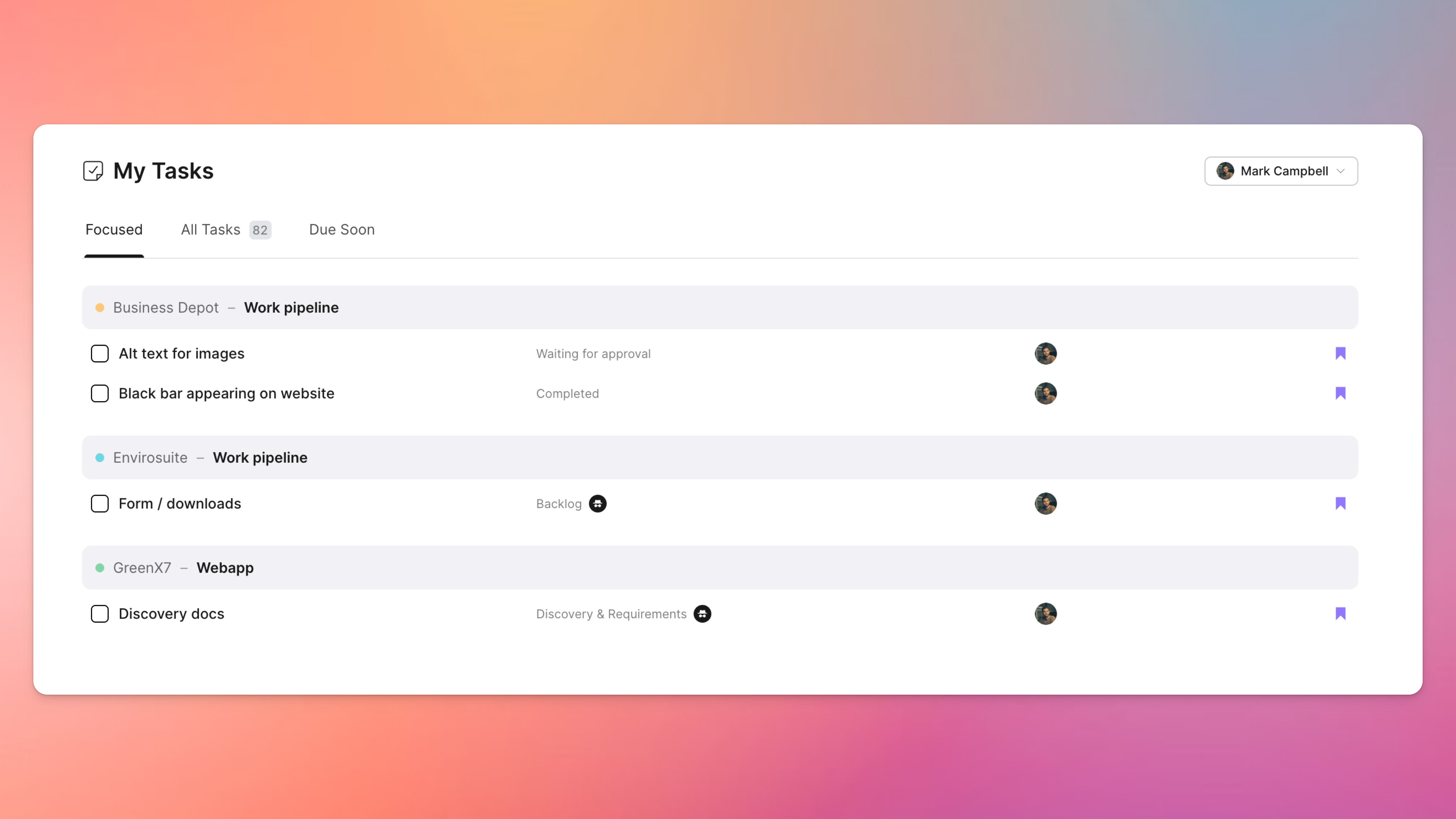
We’ve given the My Tasks view a design overhaul to make it easier to scan everything that’s assigned to you. You can now also easily update the assignments, due date and completed status from this view too.
And for Manager and Team Member users, we’ve added a highly requested feature where you can now toggle to see the task lists for other users on your team. So now you can get a sense of what everyone is working on, and better manage the team’s workload.
You can also drag and re-order the tabs, so if you prefer to see the Due Soon tab each time you hop into tasks, now you can make it your default.
We’ve got some more ideas in store to further improve this section that will be coming in the next couple of months so stay tuned!
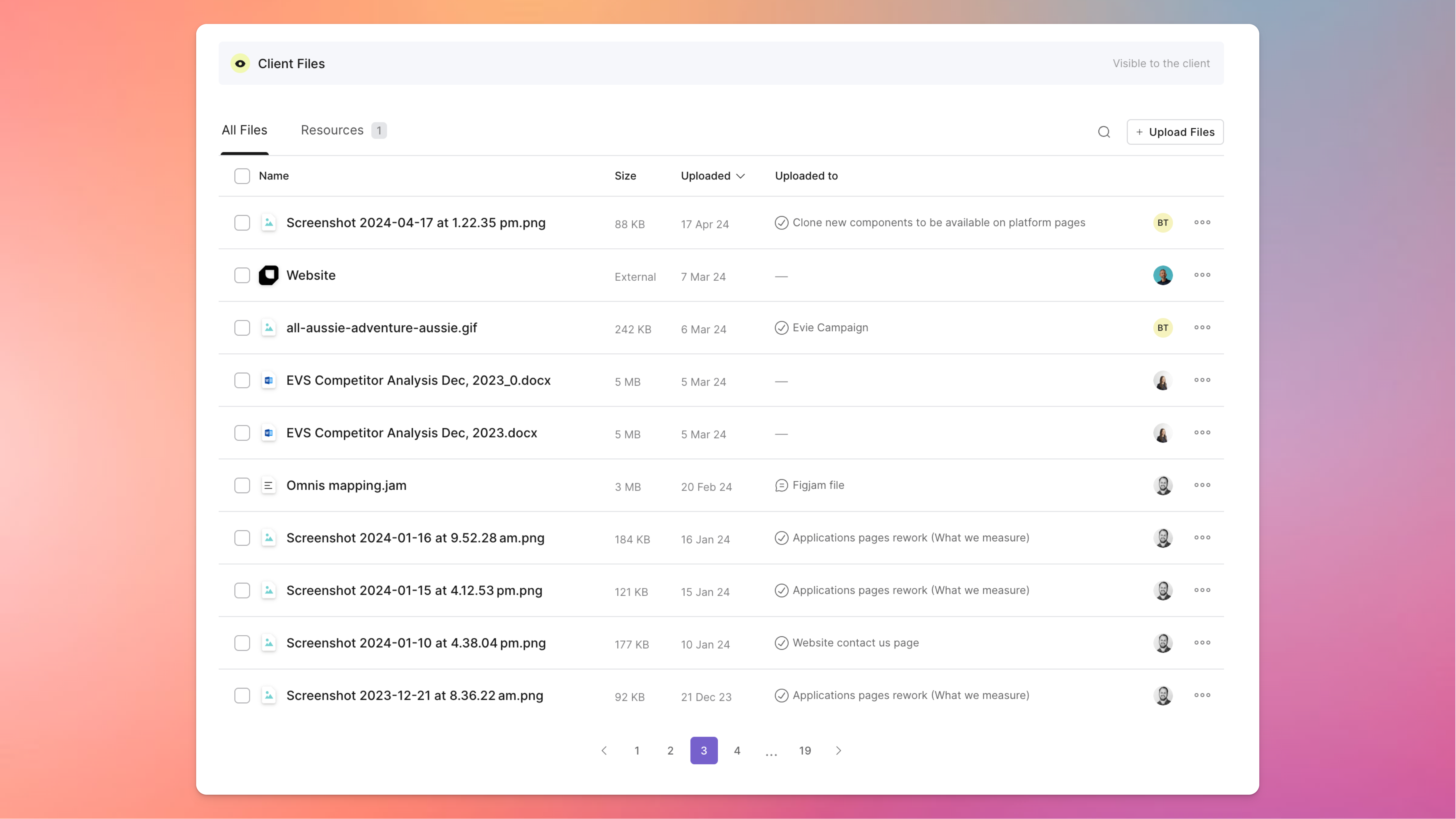
We’ve made a number of other improvements as well, including:
A refreshed design for the files section of each project, giving you greater visibility - including a link to where the file was added - as well as the ability to download or delete multiple files at once
The Project Info button now brings these details in via a sidebar rather than always taking you to a new page, so you can easily reference things like strategy docs, project goals, SOW agreements etc - all without losing the context of what you’re working on
A clearer user invite experience, with notes about the access level you’ll be giving different user types as you invite them into your teams and projects
A new and improved Help desk with more helpful articles and an easier navigation to make finding the answers to your questions much simpler
As always we’re super committed to continually improving Outlign to make it more useful for the creative teams who make up our thriving community, so with this lot of improvements released, we’ll get straight back to work on the next batch!
From us over here at Outlign …
Mark, Dave, Ruby & Ant.
09. Oct 2025
Share
We’re back with another product update as we continue to make Outlign more useful for the creative community.
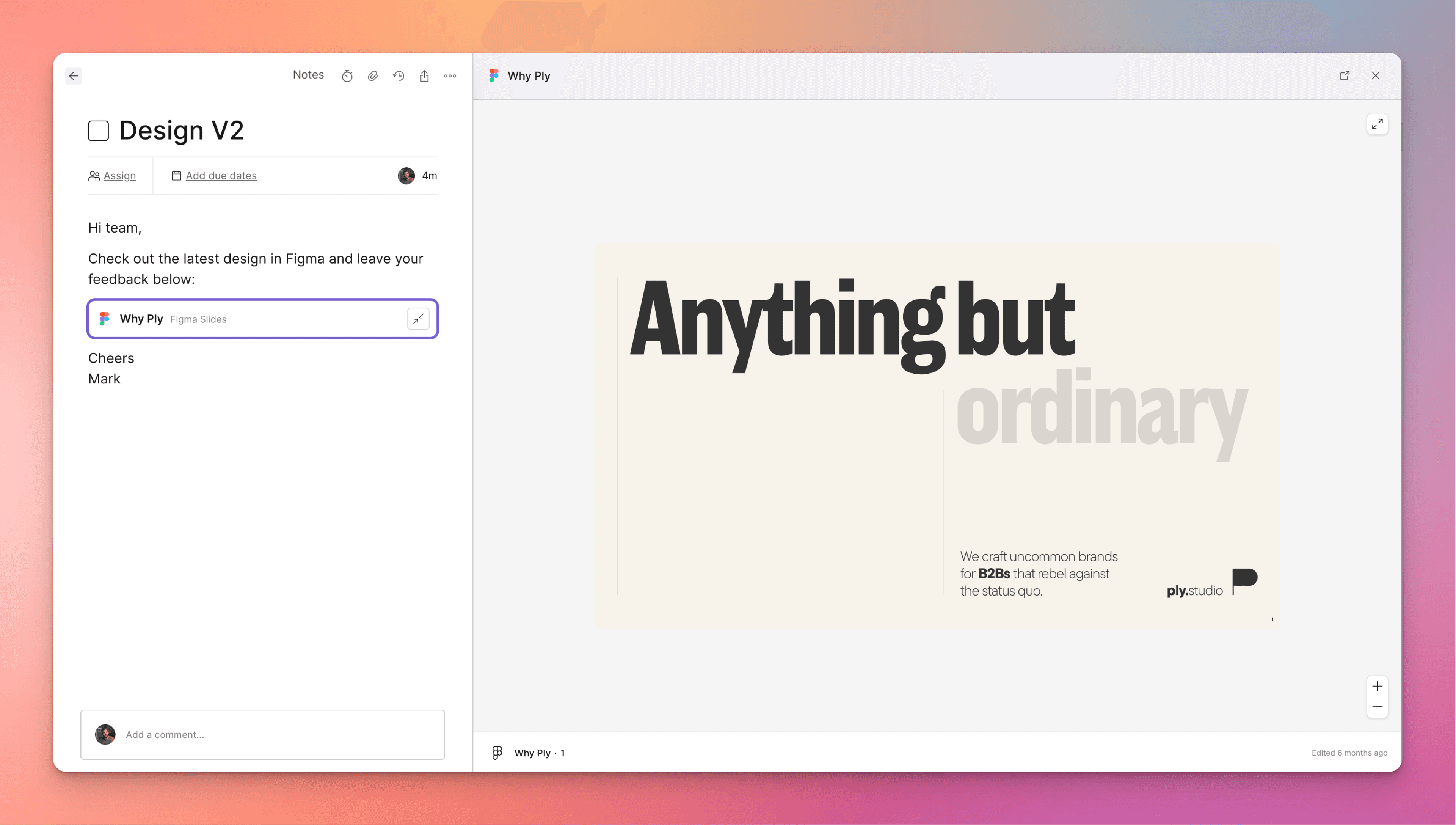
We’ve added the ability to embed a few key services into the main content area of a task and in comments, both to allow users to preview some content without leaving Outlign, as well as tidy up those ugly share links to keep things feeling more professional and organised for clients.
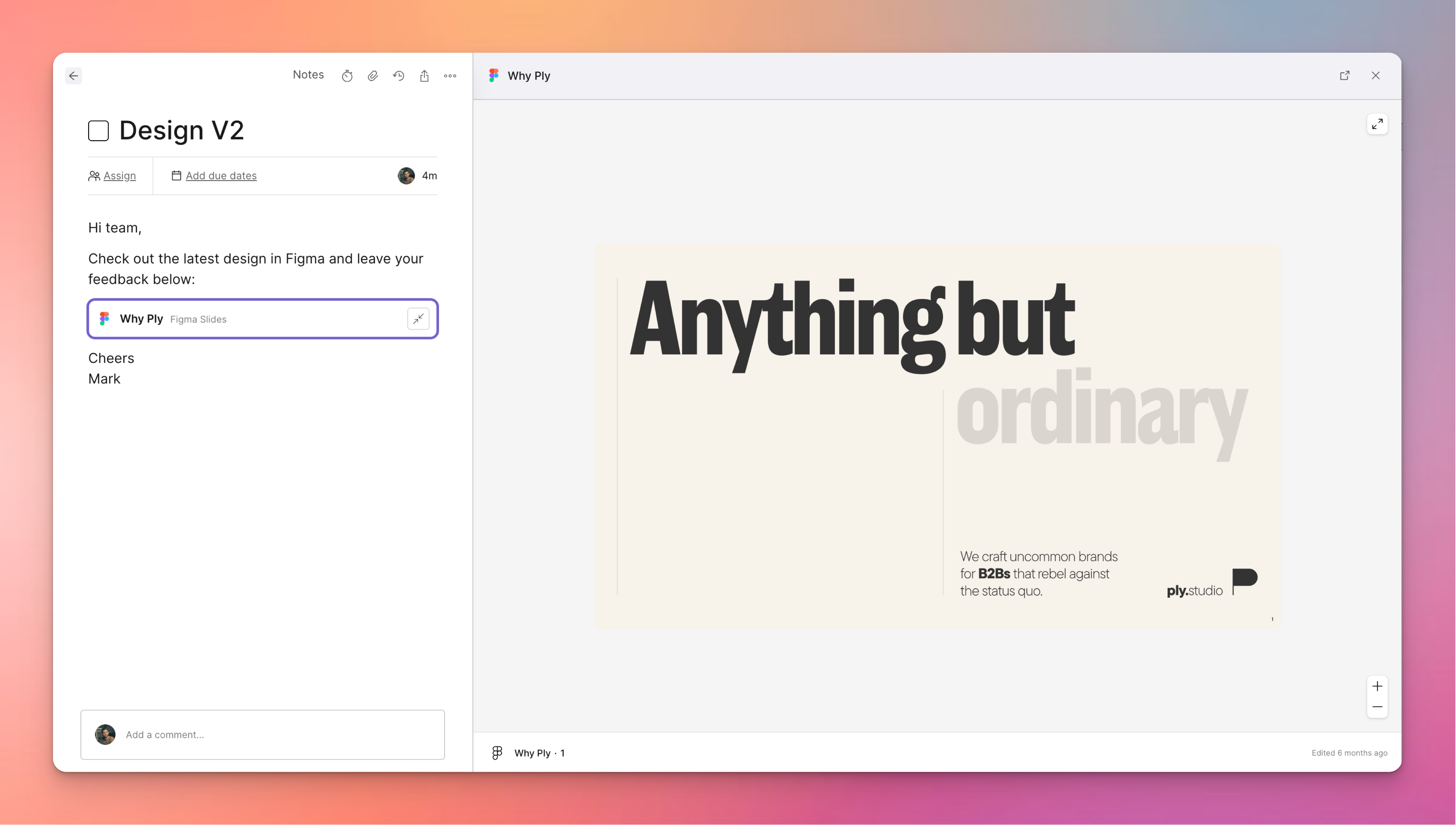
Services that provide a preview include:
Figma - design files, prototypes and slides
Dropbox files
Google Drive files - pdfs, videos, etc
Whimsical boards
Services that provide an attachment style and pull in the relevant title include:
Dropbox folders
Google Drive folders
Google Docs, Slides and Sheets
We’ll continue to add more services to this list over the coming months - feel free to reply and let us know which ones you really want to see.
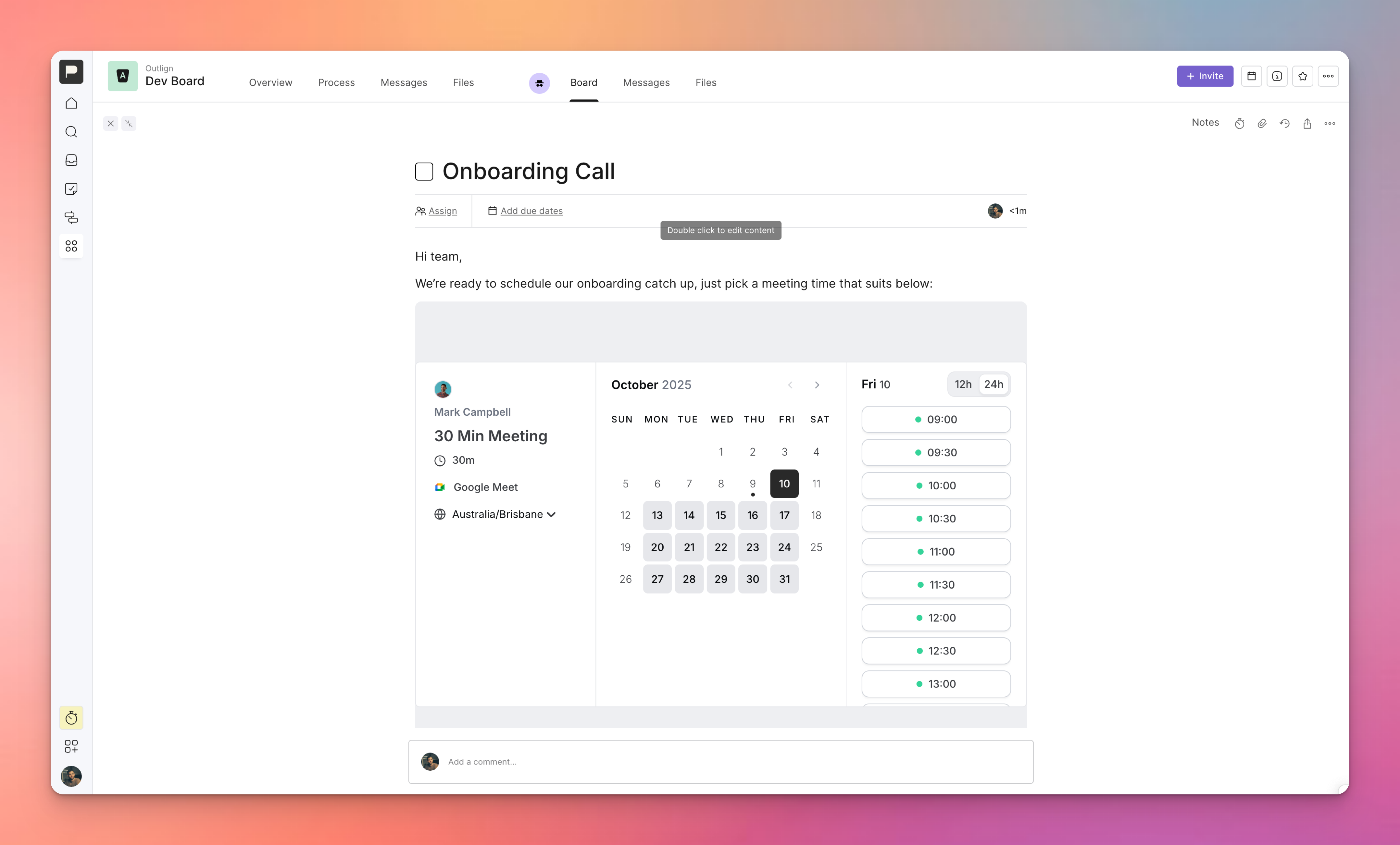
We’ve also created embeds for popular calendar booking services Calendly and Cal.com - for these you can choose to embed the full calendar booking widget in the content, or a simple “Book Now” type button that opens the full calendar booking UI in a modal when clicked.
To get started with any of these embeds, simply paste in the share link from the external service and you’ll be prompted to paste as a preview or you can always still paste it as a URL if you prefer.
We’ve also added a couple of key improvements to our Approvals feature:
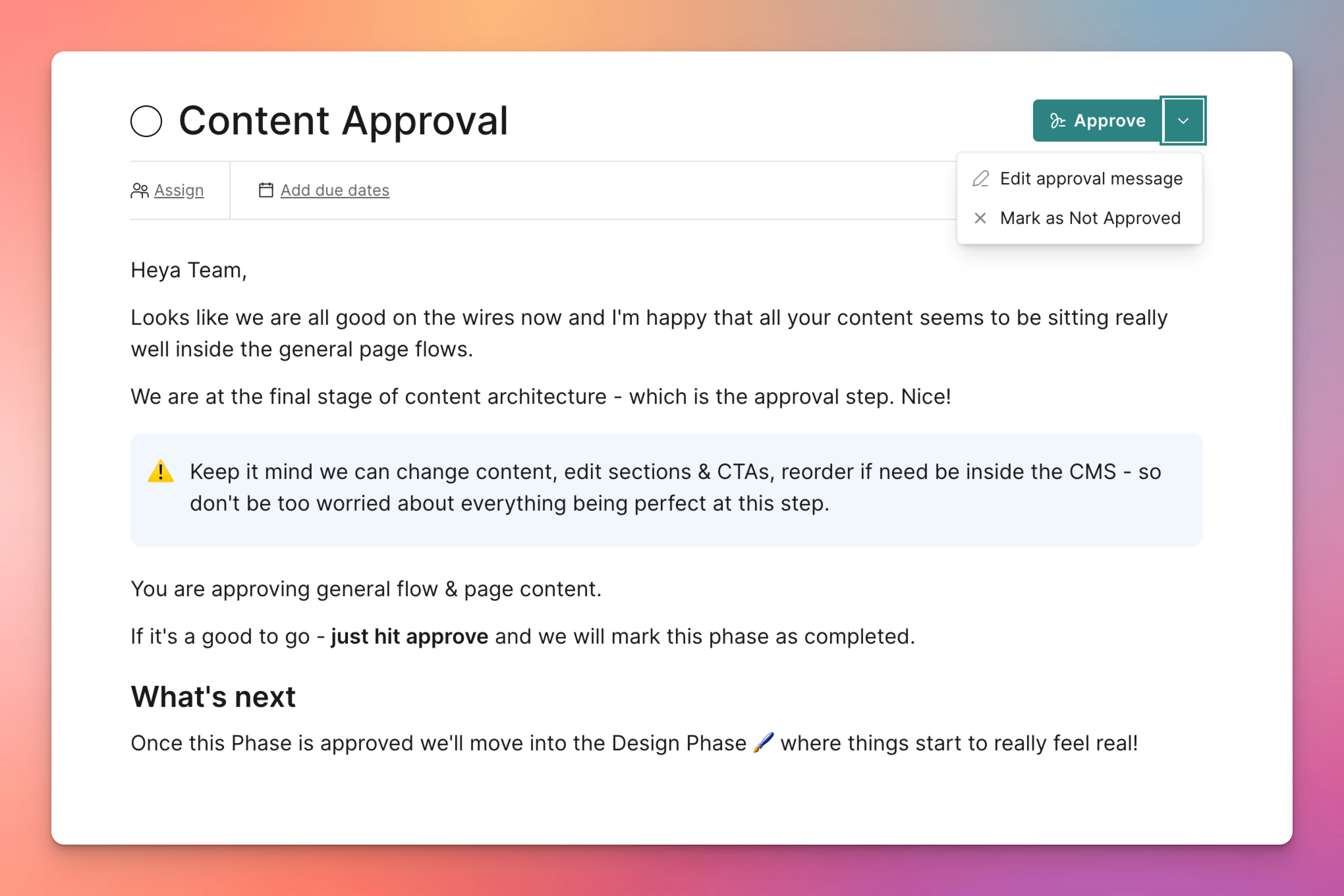
You can now customise the Approval Message that your clients will see when they go to approve a task. So now you can make it extra clear what they are agreeing to when they are marking something as Approved 
We’ve also added the ability for you or the client to mark a task as Not Approved. This way if the client needs more changes, you can still complete that task but with a clear status that it was not approved at the time 
We think this will help even more with reducing scope creep - by making it clearer what clients are signing off on, as well as a clear status when things aren’t approved and additional changes are required (i.e. more scope is needed!).
30. Sep 2025
Share
We’re excited to share a number of updates that should help to make running creative projects even smoother.
We’ve had a few requests for this one, and we think it’ll make running consistent workflows that much easier… you can now turn any task into a Template, and then create new tasks from that template across any project.
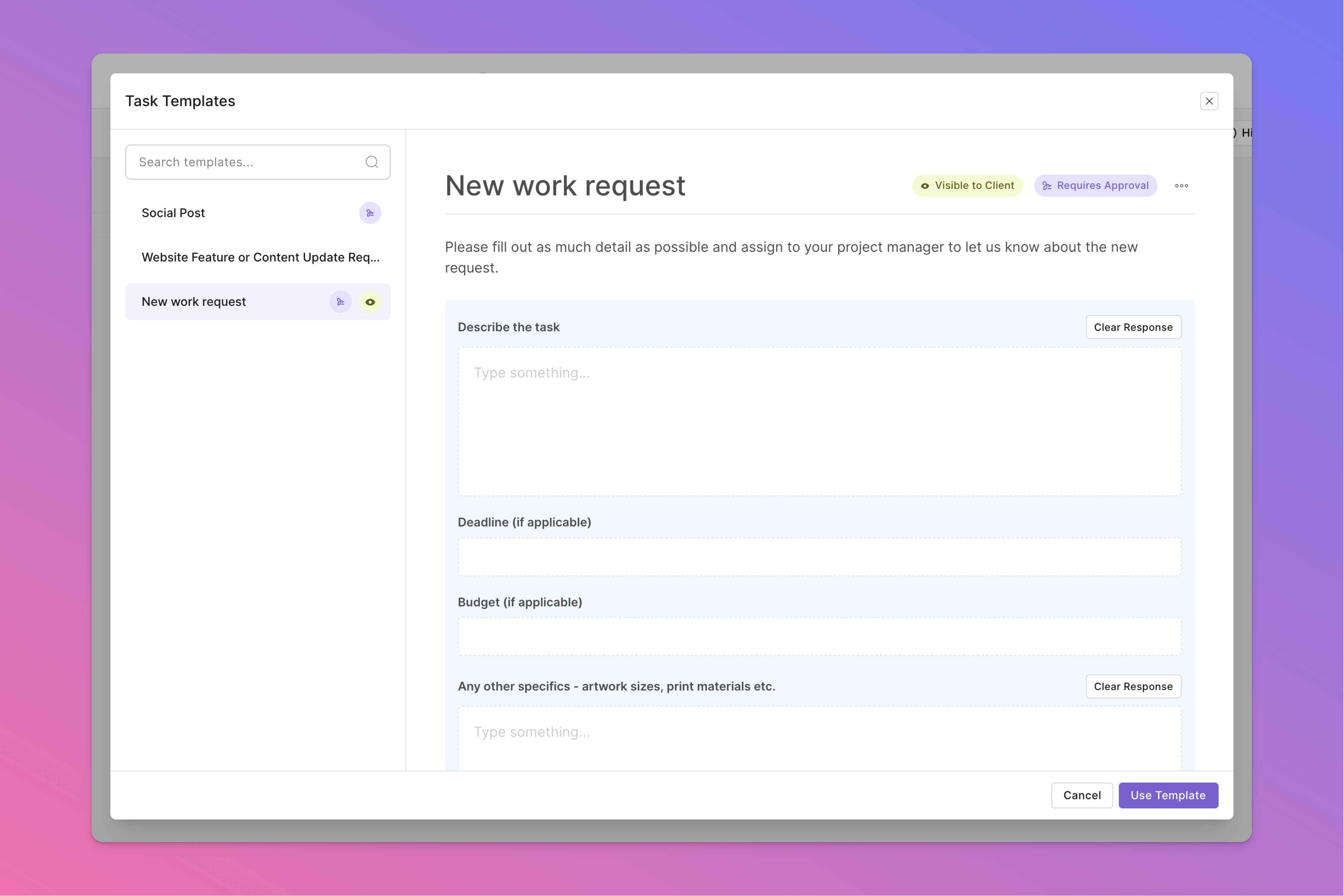
This is great for any individual task that you find yourself repeating over and over, and want a consistent starting point. You can even make them visible to your client, for board projects where the client often creates tasks and you want them to use the same format.
Some examples we’ve been seeing already include:
A standardised set of form fields for a New work request from a client
A Social Post template that contains sections for all the details you need to create a new post
A standard Project Overview task that gives the client a rundown of what’s included or excluded within any given project
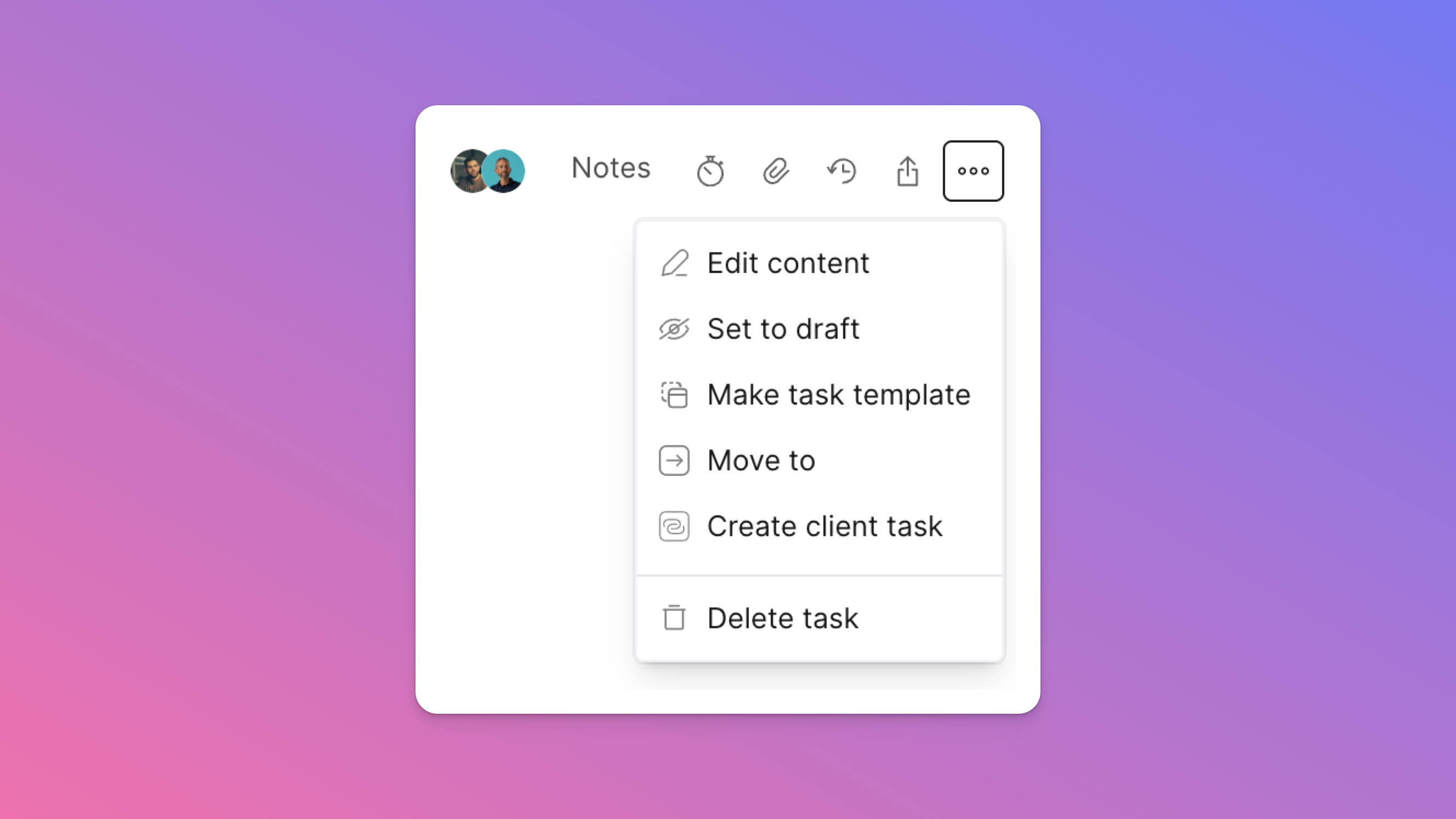
To turn a task into a template, just view any existing task and look for the new option in the 3-dot dropdown menu on the right.
Sometimes an emoji can express a thousand words, or at least one reaction anyway… So we’ve added the ability to react to comments.
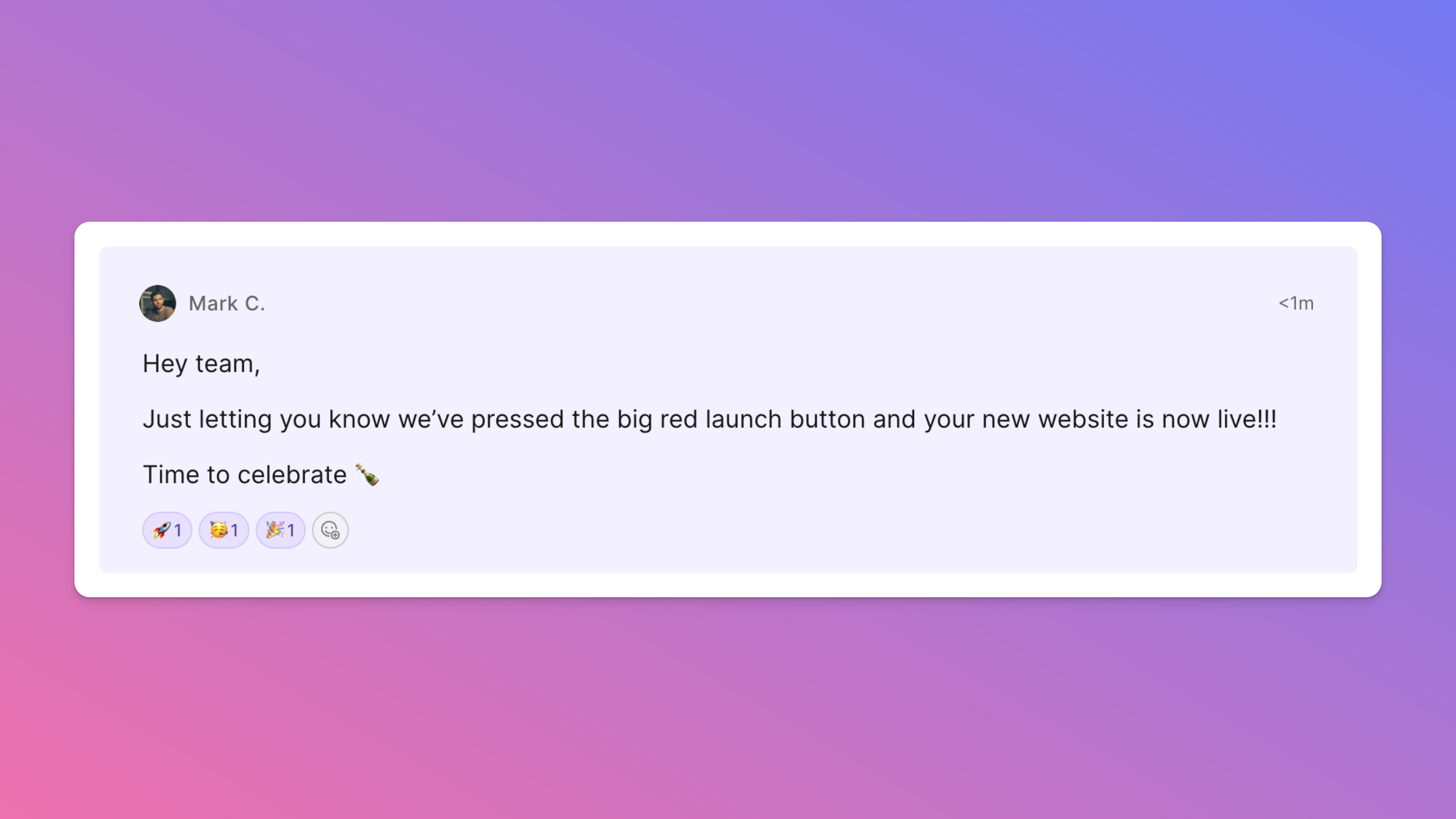
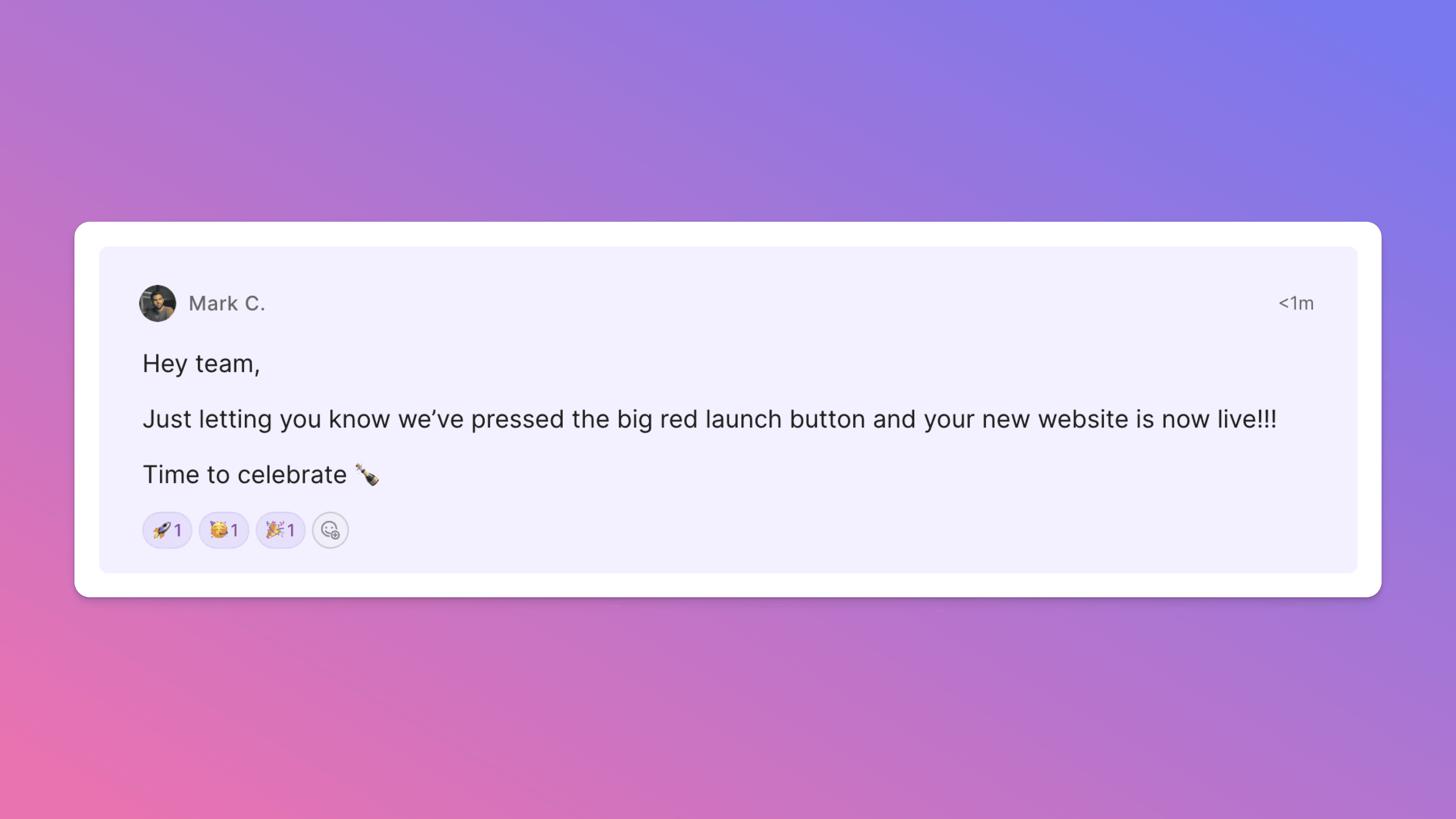
This one is great when you want to celebrate the wins, or simply let someone know you’ve seen their comment without having to post a whole comment.
Just hover over any comment and you’ll see the button for adding your reaction.
One thing we’ve found happen a lot is a task will get created on one side of the project - either the internal or the client side - and you then need to create a matching task on the other side… which can be a bit of a manual pain.
Now we’ve made it so you can easily create an internal task from a client task, and vice versa - and once you do, the two tasks will be linked together so you can easily jump back and forth between the two. Sometimes it’s the little things…
Speaking of little things, we’ve made a number of other small updates based on requests and things we’ve noticed that we hope will make things just that bit easier - getting you back to the creative work quicker.
Some highlights include:
A new Callout block in the content editor when you really need to draw attention to what you’re trying to emphasise
Setting email notification preferences so instead of receiving each one immediately, you can get an hourly or daily digest, or turn them off altogether
The ability to turn an existing project into a template - so you don’t have to start from scratch when templating your ideal process
The ability to move a task to any other phase or side of a project - allowing you to groom tasks internally before moving them to the client side, or just quickly move a task to “Done” from within the task view
Automatically collapsing long comment threads so it’s easier to get to the latest updates and continue the conversation
Being able to search for tasks on a board project
Keeping any filters you’ve applied to a board even as you leave and come back, so if you never want to see completed tasks you don’t have to
Plus a few more…
We hope you enjoy these updates and as always keep the feedback coming.
We’re really stoked to have a thriving community of creatives and seeing all the different ways you’re using Outlign to streamline your workflow, so a big thanks for your support.